


Desertcart purchases this item on your behalf and handles shipping, customs, and support to Vanuatu.
🎥 Preserve your past, stream your future—digitize with style!
The アイ・オー・データ GV-USB2 is a compact, USB 2.0 video capture device designed for effortless digitization of VHS and 8mm tapes directly to DVD. Compatible with a wide range of Windows OS versions, it features direct recording, automatic chapter creation, and smart video compression to optimize storage. Lightweight and portable, it’s the perfect tool for professionals seeking to preserve analog memories with modern convenience.
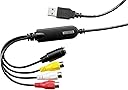
| ASIN | B00428BF1Y |
| AV Output | dvd |
| Antenna Location | ビデオ |
| Best Sellers Rank | #121 in Video Converters |
| Brand | I-O DATA |
| Built-In Media | Installation Guide |
| Compatible Devices | PC, Laptop |
| Customer Reviews | 4.5 out of 5 stars 4,351 Reviews |
| Hardware Interface | USB |
| Item Dimensions | 0.72 x 2.26 x 0.51 inches |
| Item Weight | 1.76 ounces |
| Manufacturer | アイ・オー・データ |
| Mfr Part Number | GV-USB2 |
| Minimum System Requirements | Windows 10/8.1/8/7/Vista/XP (SP2 or later) |
| Model Name | GV-USB2 |
| Model Number | GV-USB2 |
| Number of Items | 1 |
| Other Special Features of the Product | Direct Recording, Auto Chapter Function, Smart Fit |
| Platform | Not Machine Specific |
| Recommended Uses For Product | ビデオ |
| Special Feature | Direct Recording, Auto Chapter Function, Smart Fit |
| Tuner Type | ISDB-T, NTSC |
| Video Capture Resolution | 1080p |
R**3
Excellent device to capture analog 8mm video or VHS using AmarecTV
The I/O Data GV-USB2 is the best device I found for capturing 8mm video. There is no need to use the included Japanese language software. My goal was to capture my videos as accurately as possible so that I had a master copy I could use to experiment with various post-processing methods. In the review I outline some of the capture process and settings that worked for me using free capture software. I don’t know if the GV-USB2 is the absolute best capture device for analog video, but it was the best I found. I tried many capture devices from very cheap to a few hundred dollars. The colors, brightness and contrast with this device were the best of the bunch. I captured using the default proc amp settings for the GV-USB2 as many sources suggest so that all available data was recorded for post processing. It won’t upscale or give you HD, but after deinterlacing my captures I am able to watch them on a 65” TV as well as a standard definition TV show. Of course, Video8 only has 240 lines of resolution compared to 480 for standard TV, but the deinterlaced captures seem to come close. I imagine VHS would be similar. Hi8 would probably look much better. Watching on a smaller screen like a tablet the capture look quite good. I did not use the software that came with the GV-USB2 other than to install it to get drivers on my computer. Installation is easy. While the software and instruction manual included are in Japanese, the manual has pictures for every step of the software installation with arrows pointing to the buttons you need to click on screen. Once installed, you should be able to use free capture software like OBS, Virtualdub or AmarecTV. In Windows 10, I ended up using AmarecTV 3.10 with an open source codec to capture AVI files which I later deinterlaced with Handbrake. I recommend this method over all others. AmarecTV produced the best video and audio, and was also the easiest to use. AmarecTV is also the only software that did not drop frames during capture. Virtualdub and Virtualdub2 both had audio sync issues and dropped frame problems despite having comparable video quality to AmarecTV. I initially tried the Oldskool method using OBS on YouTube. It worked, but video quality was not as good since OBS is just a screen capture rather than direct capture of the GV-USB2 data. You can search the internet or YouTube for how to use any of these capture programs.
A**.
Excellent device for capturing video 640x480 to video editing software
Works with various video editing software (Pinnacle, VirtualDub, etc). Supplied CD is in Japanese, but easy enough to figure out which two icons your have to select to load the drivers. If I were Joe-bob (or Joleen-bob as not to exclude anyone) just trying to find something to convert my old VHS and Hi8 tapes into digital, I'd go with the Elgato Video Capture option. It's a better option if you are not inclined to learn a new video editing suite and spend 2-3 times more time trying to squeeze out the last bit of resolution on those high-res 640x480 videos (that's sarcasm if you didn't pick up on it). Bottom line: The Elgato is probably a better solution for 99% of people that want to transfer old videos to their computer and be able to archive/share them in MP4 format. If you are one of the 1% that likes to take the extra time and effort to capture, deinterlace/filter/convert from AVI to MP4/etc their videos using a more complex video editing soft for slightly better results, the I-O Data device is a great choice. BTW, I have purchased both the I-O Data and Elgato devices off Amazon. Have also tried an RCA>>HDMI>>USB converter set-up and streaming my analog source through a Sony DV camera to capture via Firewire. The latter worked pretty good if you have an old Sony DV camera hanging around, but all in all, the Elgato is easier than all aforementioned methods in my opinion. Follow-up: I pretty much have used this exclusively with VirtualDub (free) to deinterlace the video and Handbrake (free) to turn the AVI files into a manageable size files. Been playing with OBS Studio (free) which works well, but best results have been using Topaz Video AI.
G**I
The only USB capture device that is worth paying for… don’t accept imitations!
The GV‑USB2 works very well for converting old VHS tapes to digital. The image is stable, the audio stays synced, and installation is simple. It’s a popular device in Japan for a reason: it’s easy to use and produces consistent results. I don't use the original bundled software, I prefer AmarecTV or OBS Studio. A great choice if you want a straightforward and reliable way to save old home videos.
J**R
Solid capture card
Using this to capture a VCR output, and it outputs a proper 480i at 29.97fps consistently. The installation isn't difficult, and with OBS it has a decently functional setup program. I would highly recommend not using any of the built in deinterlacing as it nerfs the framerate, when you could get solid 60 fps with OBS's deinterlacer. I give 4 stars because my only real gripe is that the input drops out when there isn't any signal, which is understandable, but for VHS capture if you have a tape that's too damaged it'll blank out for a few frames.
B**N
Perfect device that can work with other free capturing software.
Exactly what I needed. I didn't want accompanying software, I just wanted a solid and cheap video capture device. This was it. I had tried a more expensive Avermedia device card, it was terrible, rarely worked and broke in months. But this device does the trick. As another person mentioned, "To install the drivers, put the CD in your computer. Select the box to the right, then select the box with a 1 next to it." As for software, there's a better, free way to go. If you're looking for a no hassle VCR to DVD approach, I *strongly* recommend Elgato Video Capture. It doesn't have all the features I wanted (no deinterlacing), but it worth the money. So if you're looking for options and a free approach, read on... I used VirtualDub (it's free), which does everything pricey software normally would do, but does it better. To use VirtualDub, I had to first start by giving it an output file. So to start, File->Capture AVI. Then File->Set Capture File. Make sure you have lots of room, you save it uncompressed. (For what I did, I needed 200GB for an hour of VCR tape). Then click on Device->GV-USB2. In the Audio menu, it was very important that I used "0 Capture Device" instead of the same GV-USB2 (this latter option only gives screeching sounds). Because I did a VCR tape, I opted to do smart deinterlacing (giving me true 60 frames per second). So Video->Filter Chain->Filter List. I chose deinterlace. Then I highlighted it and clicked on Configure. On the right side, I chose double frame rate, top field fire, then OK, and OK. Then started the capture with Capture->Capture Video. Pushed play on the VCR. Then I let it run. When it's done, do Capture->Stop Capture. Then the next step came to convert it to compressed video. I used the tool Handbrake (again, free). Clicked on Source, chose the file. Clicked on Destination's browse, gave it an output filename as an mp4 file. On audio I changed it to mp3 (though AAC is pretty good too). Then I clicked start. This gave me solid h264 video/mp3 audio. If you want to go to a DVD player, I find that DVD Flick (also free) always does the job for me.
D**A
It works better than others. Just don't get worried by the Japanese Only instructions
After reading the reviews here and getting some YouTube video on how to use it, I was able to connect the I-O Data GV-USB2 to my old VCR and then to 4 year old PC laptop to play back and transfer precious family videos. First.. if you are using windows 10 or 11 and don't have a CD/DVD player built in or conncectable to your PC or Laptop, don't fret!! Just go online to the I-O Data GV-USB2 website and download the drivers from it. Note!!! the website is all Japanese. Use Google Translate or your browsers website translator and translate the page into your language. When you get to the page to download the drivers. You need to download both of the files to get it to work. The tricky part, the prompts are in Japanese as well. Just click on the first one and then on the second. It will work. You also need to get a recording software. OSB is the easiest but you need help configuring it. Go to YouTube for help. There are several good videos that will get you going. This thing works really well and once you get over the setups and Japanese instructions, you will not be disappointed.
A**R
Best composite capture card for twitch streaming last gen consoles. Easy setup.
Firstly I would like to point out that this capture card for use with obs (open broadcast software) does require drivers. HOWEVER, it should come with a disk that is in Japanese with the drivers on it. I've seen other reviews of this product that make a way bigger deal out of the setup process, in reality it's very easy to set up. I just googled "I-o Data GV-USB2 capture card English setup guide" and found a website that walked me through the process. I just inserted the disc into my disk drive on my pc, pressed a couple buttons, opened obs and it picked it right up. In terms of quality this capture card is best for streaming Standard Definition games. Mostly from consoles like GameCube, Nes, Wii, PS2, and PlayStation 3 to an extent. Personally I've been using it to stream my Nintendo GameCube games, and PlayStation 3 games to twitch using obs. But there is a delay on the capture card apparently, so just to be safe I ordered a cheap av composite splitter cable to split the video from my console to my tv and the capture card. So I play from my tv and have a second monitor for the rest. I happened to have my PS3 av composite cable that came with my ps3 just lying around. It's nice to get some use out of my GameCube as well. I plan to buy an av composite cable for the original Wii so I can use that to start streaming my Wii u gameplay. HELPFUL ADVICE: if you're new to obs like I was and don't take the time to fiddle with the settings you won't get any good results. I use the auto configure tool in obs to give me an idea of where to start and tinker with stuff like bit rate from there. I would highly recommend searching for a channel called eposvox on YouTube, he has an extensive yet easy to understand guide on everything obs. Do your research before buying any capture card. Overall I absolutely love this product and would recommend it to anyone looking to stream to twitch. This capture card opened the doorway to so many more possibilities for me. Before this I was streaming directly from my ps4 with no capture card. My microphone was always compressed in quality, and I was limited to the types of games I could play. Now I can do stream countdowns, overlays, have fun with a more versatile chroma key setup, and continue to expand my game library.
A**S
Using the GV-USB2 to stream to Twitch.tv or record gameplay is definately the way to go [Standard Quality; NO HD]
Functionality: 10/10 (works great after you figure out what your doing) Setup difficulty: 4/10 (Instructions and Driver installation setup guide are all in Japanese. The setup is very easy, but can be tedious if you can not read Japanese. If you can not, you'll end up doing what I did and looking up a guide or a video of somebody else going through the installation steps and copying them. I used youtube for this.) Stream/Recording quality: 7/10 (not for HD/newer-gen games, but works great for older games, such as N64, NES, SNES, Ps1, etc...) Durability: ?/10 (Seems fairly durable. The cable itself is fairly short, not reaching very far from where it connects to the computer. But I have only had this for 1 day, and it works great so far. I can't say for sure on the durability of it as of yet, though.) I use the GV-USB2 to stream my console games to Twitch.tv. This particular item does NOT stream in HD, meaning you'll get, at most, a quality of around 480p on your stream. Which isn't the greatest, but its fine. For example, if you stream a game, say Monster Hunter 3 Ultimate on the Wii U, using the GV-USB2, it'll be watchable to an extent but the quality of the video will not be good, to the extent of text on the screen being hard to read by your viewers. However, it does stream flawlessly. Does not lag by any means, and definitely gets the job done. This capture card is GREAT for lower-res games on systems such as the Nintendo 64, Super Nintendo, NES, Ps1, and so on. I particularly plan to use it to stream my journey to learning to speedrun Super Mario 64, and don't think there will be any problems in the future with this capture card. Overall, I really like it. The price is fair (I paid $40 for mine through amazon on 11-12-14) and it works wonders for what its supposed to be for. This is definitely the way to go if you're searching for a capture card for the same reasons as me. Side Note: If you are also planning on speedrunning, like me, the tools found here may be of use to you! [...]
M**R
GV-USB2 device is excellent, time I bought a faster computer
The GV-USB2 device works well. My usage is to make mp4 copies from PAL recordings on VHS tapes. My first time video editing, trying VirtualDub first. I discovered that I have to change the PAL capture frame rate from 50 to 25fps for deinterlacing to work. Difficulty getting a preview picture on VirtualDub during capture but I think this is because the 8th Gen i5 in my aging laptop is not fast enough. When I did manage to get a preview picture the gui wouldn't let me stop the capture. I'll try the Esc key next time this happens or just find a way to get a picture on a separate display.
P**T
ممتاز ولا تاخد البدائل الرخيصه
ممتاز للي يبي يصور المقاطع من الكاميرات القديمه واشرطه الكاسيت VHS
P**L
Worth every penny! Works fantastic on NTSC, PAL, and SECAM!
It took me a few attempts to get the right equipment to capture my old VHS tapes; I wasted money on adaptors to convert YPbPr to HDMI, PAL to NTSC, and even a digital stabilizer, and this device is an absolute winner! It allows you to manually over-ride the video mode (NTSC, NTSC J, PAL, PAL60, SECAM etc.) which is EXTREMELY helpful on worn out foreign tapes played on a multi-region VCR that would otherwise confuse automated devices. Commercial tapes are recorded without problems. The capture card is made in Taiwan by a Japanese brand, which is a huge plus. It's a quality device that was well thought out. The software came on a disc, and was in Japanese, but getting the drivers to work with OBS was a piece of cake with Google Translate on my phone. My only minor, minor complaint is that the choice of resolutions is a little restrictive. I'd like to have the option to record at higher resolutions, especially when capturing from S-video. If I/O Data ever releases a capture device for YPbPr video signals, I'll be first in line to buy one.
G**A
Nice Japanese packaging!
Works well. Tried various solutions. This was the best.
A**N
Capturadora de vídeo con calidad decente y cero errores de señal
Muy buena capturadora de vídeo en comparación con todas las que tengo. Cero errores de señal y calidad decente pero tengo algunos problemas de desincronización con los FPS de la capturadora de vídeo y los FPS de OBS Studios que todavía no sé como resolver pero por lo demás todo bien.
Trustpilot
2 weeks ago
2 weeks ago