🎨 Elevate your art with precision and color that commands attention!
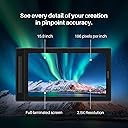
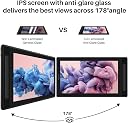
The HUION Kamvas Pro 16 (2.5K) is a 15.8-inch QHD drawing tablet featuring a 2560x1440 resolution IPS display with full lamination and anti-glare glass. It offers 99% Adobe sRGB color accuracy powered by Quantum Dot technology, paired with an advanced battery-free pen supporting 8192 pressure levels and tilt recognition. Compatible with Mac, PC, Android, and Linux, it connects via USB-C for streamlined data, display, and power delivery. Designed for professional artists and designers, it includes an adjustable stand, programmable express keys, and a full accessory kit to enhance productivity and comfort.


| ASIN | B09FDZG55G |
| Active Surface Area | 54.2 square inches |
| Additional Features | 16K Pen Pressure, 2.5K QHD Resolution, Canvas Glass 2.0, Dual Dials, PenTech 4.0 |
| Best Sellers Rank | #19 in Computer Graphics Tablets |
| Brand | HUION |
| Built-In Media | Cleaning Cloth, Full-featured USB-C cable, 3-in-1 Cable, USB Extension Cable, USB Power cable, Power Adapter, Glove, PW600L Pen, Pen Holder, Pen Nibs x 10, Quick Start Guide, ST300 Adjustable Stand |
| Color | Silvery |
| Compatible Devices | Desktop, Laptop, Smartphone, Tablet |
| Connectivity Technology | 3-in-1 HDMI, Full-featured USB-C |
| Customer Reviews | 4.5 out of 5 stars 4,352 Reviews |
| Display Type | LCD |
| Item Dimensions L x W | 16.58"L x 9.32"W |
| Item Type Name | Computer Graphics Tablets |
| Item Weight | 2.7 Pounds |
| Manufacturer | ShenZhen Huion Animation Technology Co., LTD |
| Mfr Part Number | GT1602 |
| Model Name | Kamvas 16 (Gen 3) |
| Model Number | GS1563 |
| Native Resolution | 2560x1440 |
| Operating System | Android(USB3.1 DP1.2 or later), Linux OS(Ubuntu 20.04 LTS), Mac OS 10.12 or later, Windows 10 or later Operating System Android(USB3.1 DP1.2 or later), Linux OS(Ubuntu 20.04 LTS), Mac OS 10.12 or later, Windows 10 or later See more |
| Pressure Sensitivity | 16384 Levels |
| Screen Size | 15.8 Inches |
| Special Feature | 16K Pen Pressure, 2.5K QHD Resolution, Canvas Glass 2.0, Dual Dials, PenTech 4.0 |
| Specific Uses For Product | Animation, Drawing, Painting |
| Target Audience | Artist, Student, Teacher |
| Unit Count | 1.0 Count |
| Warranty Description | 1 year warranty |
R**E
An absolute unit. Don’t even bother getting Wacom.
I came from a Wacom Cintiq 13HD that I had for a good 5 years. It still works, but it was starting to cloud up and I wanted a bigger screen. I tried XP-Pen, but its input lag and troublesome drivers had me returning it. Now Huion. Good god man this is way more affordable and acts practically the same as Wacom products. I got this on sale for $480, and I initially wanted to up to 4k but decided not to and I’m glad I chose this option instead. I stuck with 2.5k (that’s 2560x1440) and it’s pretty cool. Though, with its higher resolution, it’s a bit hard to see most things unless you scale it over 100%. There’s a few things I don’t like about that, but I do appreciate the crispness of this resolution though as well as the bigger screen size. Pros: - Better price than Wacom. Seriously, don’t even bother paying for the name brand because this is a way better, affordable alternative. Works pretty much the same. - Express keys, if you’re into that. You can program them. Also, really glad Huion implemented the pen buttons to have an eraser toggle! - It’s sleek, like come on. Cons: - Pen pressure. You have to play around with it a bit to get it to respond. There’s a big jump in pressure from soft to hard. I tend to draw lightly, so I had to tweak it quite a few times. Even now it still doesn’t feel right, but I’m workin on it. - Resolution and screen scaling. 2.5k on a tiny 15.6 inch monitor is not super ideal for me, personally. Though, I’m pretty spoiled with display and I’m not super used to a 1440p monitor with only 60 Hz refresh rate. Feels choppy lol. I think y’all will be fine tho it’s not that big of a deal. - Wires. It’s just a little on the short end from connecting the USB and HDMI plug to the device itself. I’m lucky enough to have it close, but I can see it being an issue for others. ALSO, why put the wires on the top left side? It’s not ideal and it’s a bother with a lot of computer setups. Overall, this is a super nice display tablet. 2.5k is nice and crisp if you want an upgrade from a FullHD screen. I highly recommend this tablet over Wacom. If all their products are like this, don’t even bother paying for higher!
B**Y
Great Starter Drawing Tablet w/Awesome Support
I dont write reviews for many if any products I buy. I purchased this tablet a little less than a year ago and it has been working pefectly. Screen: Very good construction this tablet is sturdy with a solid metal back with no flex whatsoever. The screen has a paper like feel when drawing which I like it has an etched glass instead of a film over the screen which is important to me so I don't have to worry about replacing the film if it gets damaged or worn out. The screen is also laminated sot the parallax from pen to to screen is minimal 5/5 Pen: The pen is decent it does tilt I don't use that feature much but its workable and it does go edge to edge. Pro tip for those having issues with the cursor not syncing up to the pen, make sure you run the calibration tool and for some reason Windows sets the screen to 150% scale which messes up the pen and it doesn't track correctly. Change the screen resolution back to 100% and the pen and tablet work fine. I like a little more heft to my writing utensils this pen is a little light, but it work very good and I can draw line quickly and easily with no lag. The pen has 2 programmable buttons as well. 4/5 Usability: The tablet has 6 macro buttons and a slider which are useful and I use a lot some people prefer the buttons others prefer to use their laptop keyboard. I find the screen size to be very good and even though its at 1080 P I don't see individual pixels when working with the tablet which on bigger screen can become annoying unless you go 4K. The biggest problem I have is the power button is located too close to the macro buttons and I had to train myself not to shut off the tablet in mid draw. They should move that. I don't like the all in one cord solution either they came with I fear that if it breaks I will need to buy one from Huion if they sell them separately. 3.5/5 Support: I never thought I would write a glowing review about the support I received from a Chinese company with their product. The tablet I received was working perfectly until 2 weeks ago and the screen went white on half of the tablet. I had a little over a month from their 1 year warranty and I didn't expect it to get foxed or replace and was all set to purchase a different tablet from a different company. However I thought with nothing else to lose why not give their warranty a shot. I sent pics and a video of the issue to HUION support and within 2 days they sent me an email after looking at my video of the problem that they were going to replace my product all I need to do is pay $50 for shipping. $50 is a lot better than $300 plus so I went for it. I received a replacement tablet yesterday and hooked it up. It came from Amazon in original product box with all the cords, pen and accessories that come with a new tablet. The support was in constant contact with me through the whole process and I am impressed. Honestly I wouldn't expect that much from a company in the United States with a defective product let a lone one from China. 5/5 TLDR: Very Good Wacom alternative for half the price and awesome support. Some minor gripes here and there but honestly for the price I paid and the support I received I cant complain.
A**R
Affordable and nice display tablet!
This is my first display tablet and really debated on whether to even splurge on one since I have grown well adept to using my trusty Wacom Intuous 5 Touch Medium non-display tablet. Needless, to say, I am glad I did, though. The transition went as well as I could hope for in that I like the pen, I like the screen and drawing/painting on it seems to be working very well. I, initially, did have an "Oh-No-Moment" when I fired up Clip Studio Paint Pro and the pen wouldn't register my strokes. I searched online and found a solution. I had to go to File > Preference > Tablet... and change the "Using Tablet Service" from "Wintab" to "Tablet PC." My computer is a desktop and not a "Tablet PC" but this seems to have done the trick. Anyway, after using a non-display tablet for so many years and getting over the hand-eye-coordination thing, the transition to the display tablet was a bit jarring at first. But, I think, the transition will be much easier this time around because having a screen does make drawing more intuitive and fun. I even like the posture of hunching over the drawing, now, with the display tablet and harkens back to drawing on actual paper. Even, if it's not necessarily good for posture, it makes one feel more "focused." LOL! Speaking of hunching over, the new drawing position of the display tablet does introduce something I didn't encounter with a non-display tablet and that is my hand and pen does get in the way of what I am drawing a little bit. But, I think, my brain is just not used to this, yet. Also, the pen does squeak when pressed hard. And, pressing hard on the screen does create those "ripple effects" from the pen pressure, which gave me pause at first. But, I think that is just inherent of LCD tech.... Other thoughts are... and not in any order... build quality is nice; feels solid since the front and back are made of aluminum; the default/out-of-the-box color of the display did not look out of whack and looked "normal" to my naked eye; I did tweak the colors a little bit to make it look closer to my reference monitor, which is an Asus PA238Q ProArt Monitor and supposedly "factory-calibrated;" so, just by eyeing it, I was able to get the Huion's screen to "match" my Asus monitor, which is possible due to the display's array of OSD settings, allowing one to adjust Gamma, Temperature, Color, etc... More, thoughts... Installing the driver was semi-painless; the UI of the driver is at least easy to navigate and clearly labeled; I like that one can bind the 6 keys on the side of the tablet to whatever one wants; I wish the buttons did have an LED of some kind, though, because it is hard to see when drawing at night (but, that would probably add to the cost); the touch slider-strip thingy is cool and works and I use it to zoom-in-out of my canvas; but, it is very "touchy" and "sensitive" and gets activated, unintentionally, when sliding fingers to and fro from the other side buttons; my Wacom Intuous 5 pen and the Kamvas 16 Pro Pen are very similar in feeling to me, which is great; I do wish Huion supplied different nibs as Wacom does; and, not the same hard plastic nib times 8 or what-have-you (My Wacom Intuous 5 came with different style/material nibs; so, my preferred nib on my Wacom is actually made of some rubbery substance, so it's kinda soft when drawing).... What else... that is all, for now... I have only had this for a day, but, wanted to post my initial impression in the hope that it can be of use to ppl out there making the same decision that I did. Thank you!
L**V
Could have come with directions. Otherwise, seems quality. Difficult start up.
4/5 Stars. The setup is strange. Simply plugging the Kamvas in doesn't necessarily work. The screen briefly flashes on. Shows "no signal" and goes dark. What do you do about this? I have no idea. No directions were in the package. You've got a jumble of cable options. One is for power. This is clearly marked, but doesn't seem to use any of the power connectors I have. Plugging it into the PC does work. Great, it has power but why? I bought this to be liberated from the PC. Annoyed. Manufactures universally don't seem to make screen protectors for Huion NOR Wacom. Be prepared for such laziness. You can get some that fit over the drawing area. So, I guess that's something? I'm going to attempt to set this up again in a few days, but honestly it's more bothersome than it really needed to be. No real reason to have to jump through so many hoops to arrive at the same thing that was in the box out the door. I suspect the issues are these. When you get the box, if it comes with directions, you'd have a better time with things. The box is actually good quality and the device itself is nice to handle. Good chords, stand, and all that. It looks like it will work once I figure out how to actually turn it on. That's another thing... clicking the power button doesn't lead to the screen coming on yet. VERY DISTRESSING! Once you figure out how to get power to the thing (no outlet power connector is supplied so use the PC for now?) you will see the no signal message. This at least shows it works? I guess? I hope. Afterwards you need to most likely get some app for it. This seems to be what Youtube recommends, but people are skipping steps. They don't show the whole process for getting the device working. Overall... a bit mystified to mildly worried. Got this in mid November. It's late November now. I'm being that gentle with it because I have no idea what I'm supposed to be doing to get this to work. And it's a tad bit expensive. Anyway, I'll update the review if I figure out whether or not this one is a dud. At present it just looks like zero directions = no idea how to set it up. And youtube isn't a good source of information.
J**T
Easy to use right away
I am a decent artist with pencil and paper, or paint, or whatever medium... but never tried digital art before. Since I do graphic design work and am familar with the adobe suite of software, I've been curious about trying to take my art digital too. After just a couple weeks I was producing things that were just as good if not a little better than my hand drawn art. This was really easy to set up, and I was working nearly right away although there are still a lot of things I need to learn to be quicker with. This can only come with more time and practice and is not the fault of the tablet. Things I like: Pen does not need to be charged. The tablet is not a touch screen but is only activated by the pen. I thought I would hate this but I actually have come to love it because I can rest my hands on the screen and not worry about accidentally wrecking something Feels like natural drawing in every way. The one thing I don't like? All the cords. I knew going in there would be cords, but I hate cords. But that's life right? I find I accidentally click the pen buttons way more than I should. They are positioned to be easy to get to and I guess I find them too easy to get to. NOTE: You NEED TO HAVE a separate computer to hook up to this tablet. It is not a stand-alone You NEED to run software that is compatible with the tablet. No software comes with the tablet. The following software works with this tablet: Krita, Gimp, Photoshop (Krita and Gimp are both open source and free for you to download and use) There are probably more than that, those are just the ones I've tried. You will need to download drivers to get the tablet to work on your computer, this information is given in the box. HELPFUL HINTS: If you are a complete newbie to tablets or digital art, I advise learning to use layers. This will help you be able to go back and edit parts of your drawings without disturbing areas around it.
T**T
Great little drawing tablet. (plus some tips for anyone as clueless as I was)
I am very used to working on Wacom machines; I've owned their tablets and massive Cintiqs alike for personal and professional work. I had spent years assuming Wacom was the way to go, but this product has seriously shaken my views. It connects to my laptop (which is quite old, from 2016/2017) perfectly through a single USB-C wire, no power wire required unless I see fit for resource allocation. And the screen.. is fantastic. Granted I got the 4K version; the common opinion is that you don't need that kind of definition on a smaller screen (and I acknowledge that the larger Kamvas would have given me more per buck), but I already have such limited desk space. Let me tell you, it is astounding to see the difference between my Huion screen and my large Cintiq screen, the crispness and vibrancy feels like night and day. My eyeballs are going to get spoiled. Pen action feels good, no lag, and the tip of the pen feels true to exactly where I point (accuracy). This is something about Wacom products that frustrates me. Some problems I encountered, and the solutions that worked (for my cases only)::: -The Huion screen said "No Signal/Power Saving Mode" with a red light. I heard it connect to my laptop, only to immediately disconnect itself. I also noticed that my computer was registering it as a keyboard, for some reason; not as a second monitor. I agonized over this for hours and nearly returned the product because of it. Here's what I did: 1) Uninstall Wacom drivers 2) Complete shut-down (not restart) 3) Install the Huion driver while the tablet is NOT connected 4) Complete shut-down (not restart) again 5) Go into Devices, right click my graphics card and update it. At that point, the Huion FINALLY blinked on. I restarted the computer again just in case, and it's been working after that with no issues. -The Huion screen appeared blurry. A 4K screen, blurry? This was startling, but the explanation/solution was a super simple one: 1) Go to Windows' Display settings and make sure the 2nd monitor is set to "Extend Display," not Mirror or whatever. This is really handy for anybody that needs to pull up lots of reference images/emails while drawing. Or just to have youtube open Lol. 2) Open Huion settings 3) Make sure the Display AND the Pen are mapped to that 2nd screen. The moment I did this, the Huion display became as sharp as a knife. Fantastic. Alright, now... the cons. -The stand is completely useless after a certain angle. The bottom ledge the monitor is supposed to rest on is not nearly deep enough. What happens is the Huion will simply slide off. Huion, if you sell a separate stand that's sturdier and heavy duty, I'll grab one. -Setup was not as straightforward as Wacom, the "No Signal" thing threw me for a loop. -I love the fun donut pen holder, but it does take up precious desk space. I'll update later after I've spent some time working on this. But in the meantime, I'm very happy. Much happier than with my smaller Cintiq.
C**N
Great tablet for intermediate artists and professionals
Hello my name is Chris. I am a professional concept artist and illustrator. I have had a lot of experience working on many graphics tablet brands which include; wacom, artisul, Xp pen and of course Huion. I bought this tablet because it seemed to be a legitimate wacom alternative. And after using the kamvas pro 16 and using the pro 13 for months longer, I honestly believe it really is a good alternative. Design: The design is very sleek and it truly feels well made. I personally prefer its compact design over the wacom equivalent 16in product. Because the Kamvas pro’s design is similar to the iPad, it makes it quite easy to take it on the go at a coffee shop or something. It has a simple power source via a 3 in 1 cable. Usage: Some of the major features I like about this tablet is that it has a high range of pressure sensitivity. The screen has really good rgb gamut range, and the glass feels pretty nice to draw on. And lastly Tilt functionality!!! I'm really glad to finally be able to use this feature on a more affordable tablet. If you set it up correctly in your digital art app like photoshop, you can really take advantage of a more intuitive drawing experience. Setup: Huions driver for this tablet is pretty good and simple to use and are actually compatible with a lot of there other Huion products. A lot of the functions like switch brush, pressure curve, and express keys can be edited here. As for anyone who has Issues with the Huion’s Drivers. Keep this in mind: All brands (including Wacom) have issues through drivers. And in many cases these issues are actually caused by conflicts and bugs in settings on you PC or your software. If it is set up properly you won't have any problems getting to use the full capability of the tablet. They also have good customer service. Keep in mind Their time zone is in China but they are very polite and willing to help. With all that being said, I wish for only two things that would give this 6 stars: 1)It would be great to power the tablet via usb to pc so it wouldn’t have to be plugged into an outlet. This would make it even more portable! 2) I truly wished there was a way to customize the pen pressure curve by dragging its points in the driver settings as an alternative to the set levels that it has. This would make the drawing experience even better and give the artist more control over their stokes I believe this is a great tablet and is a good investment for an Artist. It is a great price for this type of tool. It will literally pay you back in a project or two if you do work for clients or if not it is a great gift for anyone who has a passion for digital art. You can check out my test video and some work I created with it in this review.
A**L
You’re getting your moneys worth and I was trying to find something to complain about but couldn’t.
Oh man I love this thing and wish I had a new one 😭 it still works perfect the buttons are in the perfect spot, if it ever gets a little wacky with response or it not working which rarely happened only when I didn’t use for a while at a time. I’ve had it for around 5 years and use it got rid of my monitor and use it as my monitor for about 3 years now. It’s so easy to use, great value for the price and another to talk about getting a glove is such a savior and also the sensitivity it has to go as thin and light as a pencil would. I could say so many great things about this and whenever I need a new one best believe I will be getting one!
P**K
Beautiful display
Initially I wanted to buy an iPad Pro 12.9 and I'm glad I didn't. I only draw at home and portability is not an issue. This is my first pen display so I cannot compare it with others. Beautiful colours and because it's 4k theres no pixelation. Everything looks so crisp, its like drawing on paper. I only use Clip studio paint and Photo shop and I didn't experience any lag or parallax. Nothing negative to say. I'm only used to traditional drawing and it takes a while to get adjusted to digital as you can tell from the pic. I'm 100% satisfied with the purchase.
C**N
Perfeita
Muito boa! Tem uma sensibilidade à caneta perfeita, é grande e com a imagem ótima, uso também como segunda tela e não tenho o que reclamar. Só elogios mesmo.
F**A
Good
Very good but not suitable for gaming, very laggy and choppy when it comes to that but i mean it is a drawing tablet so im not mad about it; very satisfied !
F**N
Great product
Works good, great display
J**E
Muito bom!
Tablet incrível, veio com tudo (suporte, pano pra limpar tela, caneta, suporte da caneta, ponta extra, etc.) tudo muito bem embalado. Lindo o tablet, funciona perfeitamente, entrega rápida, só tomar cuidado com o dispositivo ter entrada usb-c para conectar ao tablet, e no espaço disponível em sua mesa. O tablet é maior do que eu esperava (ele é maior até que a tela do meu laptop), então é bom considerar o tamanho dele na hora de comprar. Além disso, o vendedor (DeePaints) é super atencioso, responde rápido, e é aprovado pela marca (HUION). Só não confirmaram a entrega na Amazon depois que eu recebi o pedido, então está há quase um mês falando que "vai ser entregue". Fora isso tudo muito bom.
Trustpilot
2 weeks ago
2 months ago