Desertcart purchases this item on your behalf and handles shipping, customs, and support to Vanuatu.
✍️ Elevate your digital artistry—ditch the mouse, join the creative revolution!
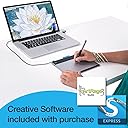
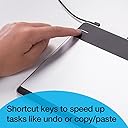
The Wacom Intuos Pen Small Tablet (CTL480) is a compact, high-precision drawing tablet featuring 2048 levels of pen pressure sensitivity and 4 customizable ExpressKeys. Designed for Mac and PC, it replaces your mouse with an ergonomic, battery-free pen that reduces strain and boosts productivity. Includes downloadable creative software and supports left/right-handed use, making it ideal for beginners and professionals seeking a sleek, efficient digital canvas.


| ASIN | B00EN27TCI |
| Active Surface Area | 6.0 x 3.7 |
| Additional Features | Pen |
| Best Sellers Rank | #156 in Computer Graphics Tablets |
| Brand | Wacom |
| Built-In Media | Digital Pen, 3 Pen Nibs, Nib Removal Tool, USB Cable, Quick Start Guide, Regulation Sheet |
| Color | Silver,Black |
| Compatible Devices | Personal Computer |
| Connectivity Technology | Wireless,Usb,Wired |
| Customer Reviews | 4.5 out of 5 stars 667 Reviews |
| Global Trade Identification Number | 00753218991157 |
| Item Weight | 10.56 ounces |
| Manufacturer | Wacom, Inc |
| Mfr Part Number | CTL480 |
| Model Name | CTL480 |
| Model Number | CTL480 |
| Native Resolution | 2540 lpi |
| Number of Items | 1 |
| Operating System | Mac, PC |
| Pressure Sensitivity | 2048 levels |
| Screen Size | 7 inches |
| Software Update Supported to Date | unknown |
| Special Feature | Pen |
| Specific Uses For Product | personal |
| Target Audience | Student |
| UPC | 753218991157 807320200772 088022181075 |
| Unit Count | 1 Count |
| Warranty Description | 2 years |
K**S
RSI Relief at Last
I bought this tablet strictly as a mouse replacement and this review is about my experience trying to find relief for my RSI. As a Mechanical Engineer I spend 6-8 hours a day in front of a computer, mostly using 3D CAD programs such as Solidworks and Pro E. These programs are VERY mouse heavy and require precise movements. I had always used a traditional mouse (because I didn't know anything else existed) with no issues until one day I noticed some pain in my right forearm. Thinking I was just tense that day, I powered through. The pain came back the next day even worse. I dealt with that for about a week, hoping it would go away or I could find a way to hold my mouse that would minimize the strain on my arm. I even tried mousing with my left hand for a week and the pain turned up there too! I turned to the internet for a solution and after a couple Google searches all roads seemed to point me towards a vertical mouse (Evoluent has some great SEO). Not wanting to drop too much money, I settled on the Lugulake vertical mouse for $11. For a single day I thought I had solved the problem because the pain was less intense in my forearm than it had previously been, but within a week the pain had moved from my forearm to my hand due to the new clamping force necessary to click the mouse and the new muscles that were now in a constant tense state. I knew this product would not work for me so I turned to the internet again and this time wound up at the trackball. I purchased the Kensington K72337US trackball and again I thought my problem had been solved. But after a week, the pain in my forearm returned with a vengeance due to all the finger movements necessary to operate a trackball. I began to panic. I make my livelihood off my ability to manipulate a cursor on a screen and thus far ALL my attempts at doing this seemingly simple task without pain in my arm had failed. After several more hours of research I was led to the pen tablet which is where my quest for painless computing has ended. I purchased this tablet after reading good reviews and after a week of using this device nearly all my pain is gone (can you hear the hallelujah chorus?). My hand feels much more relaxed holding the pen than a mouse. My biggest worry about switching to a pen tablet was a loss of productivity, but after a few days of getting used to using the tablet I believe I'm even FASTER with the tablet than I am with a traditional mouse (even with Solidworks). This is due to the fact that every point on the tablet is mapped to an exact location on the computer screen so with some practice you can move around the screen with much less hand movement than with a traditional mouse. This tablet is extremely well made and it has far exceeded my expectations. Coming from a non-Adobe / Photoshop user I can easily say that this works well simply as a mouse replacement. In fact had pen tablet technology been around when Xerox first invented the mouse, perhaps we'd all be using these. NOTE: If you're buying this as a mouse replacement there are a few things you should know before you buy. 1. Pen tablets work much differently than traditional mice. With a mouse, you move the cursor and it stays put until the mouse is moved again. With a pen tablet, the cursor is moved by HOVERING the pen over the tablet and where you touch the tablet is where you CLICK. This really concerned me when I first started using it because I was nervous it would cause my forearm to tense up to make fine movements. This was not the case, however, and believe me you want it like this. If you moved the mouse by contacting the surface you would have to make significantly more movements to move the cursor across the screen, thus increasing the toll on your hand and arm. The way this tablet is designed, once you "learn" your screen you are much faster and more efficient moving the cursor but it will take some patience to get used to. 2. The buttons on the tablet and stylet can be programmed to any key or mouse click you want. This, in addition to a key remapping software can make you much more productive. 3. In retrospect it probably would have been worth the extra money to get the Wacom Pen & Touch tablet just in case I ever wanted to use the touch feature. But with how well like the pen mode I don't think I'll switch. BOTTOM LINE: I'm so thankful for Wacom and this product because it has saved my career. If you're experiencing any pain from a mouse (or simply want to join the 21st century), learn from my experience and get this as soon as you can. You'll be extremely glad you did. *************Update: 4/23/2014*************** Shortly after posting this review I exchanged my pen tablet for a Pen & Touch tablet despite what I said earlier. The combination of pen and touch is amazing. The touch feature is accurate enough to use as a mouse replacement alone and I find myself using the best of both worlds with this device. I use the pen when I have any heavy mousing to do, but if I am just typing a report I can use the touch feature to mouse where I want to be without having to pick up the pen. The two finger scrolling with the touch feature is also really easy to use. After using the tablet for 4 solid months I still love it. The wrist / forearm pain I was feeling is still gone, though some slight soreness happens if I use the device for 8 hours straight (as can be expected with any repetitive activity). All in all this is a great device that works extremely well as a mouse replacement. **********Update 1/20/2015********************* I have been using this product as a mouse replacement for over a year now and I can say that I am pain free. If you are on the fence about getting one you should definitely pull the trigger. Your health is worth so much more than any product. I don't think I would be able to continue working as a Mechanical Engineer were it not for this product. I will say that now that my pain is gone I occasionally use a traditional mouse for some specific work with Pro E, but 90% of my work is done with my pen tablet. And when I do use a mouse I limit myself to using it for 30 minute stretches. If you're struggling with RSI you know how scary that issue can be. This product, along with improved posture (which is key for RSI) has helped me gain my back my confidence that I can be an engineer for years to come. If anything changes with my satisfaction with this product I will be sure to post another update. There were some questions as to which specific model I purchased and I bought the Small Pen & Touch model.
K**.
Great tablet for beginners, graphic designers, and game developers!
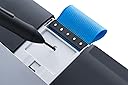
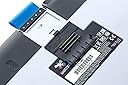
Note: Amazon likes to link reviews together when there are a variety of tablets to choose from. This review is for the CTL480! The Wacom Intuos Pen Small Tablet (CTL480) is a great tablet to get started with. As a graphic designing and game developer, I've always used a mouse and it's tricky to get nice smooth lines and a natural feel when drawing/sketching. When I picked up this tablet, it was like night and day, compared to the mouse. It feels so much more comfortable and natural, exactly like drawing with pen and paper. Let's jump into the details of this tablet a little bit. The Tablet ---------------- • Tablet overall size: 8.25" width X 7" height X 0.38" thick (Measurements were made myself) • Tablet active drawing area: 6" width X 3.5" height (Measurements were made myself) • Tablet has 4 "ExpressKeys" which are key shortcuts that can be used to simulate a keyboard key press, application switcher, mouse clicks, and more. The Pen ------------- • Pen has 2 buttons near the bottom which is similar to the tablet's "ExpressKeys" and can be set to whatever shortcut you wish. • Supports up to pressure level of 1024 (tip pressures can be set in control panel to prevent wearing of the nibs too quickly). • Pen does NOT have an eraser. • Battery free, no need to charge/recharge or worry about expiring/dying batteries. • Pen feels a little thicker than a traditional #2 pencil, but not quire as large as a mechanical ink pen. Box Contents -------------- • Tablet and pen • USB cord (relatively short. Can get a longer cord/USB extender/their wireless kit accessory). I couldn't use it in my keyboard's USB ports either). • Drivers on a CD (I just used the website's drivers without issues on Win 7 64-bit). • Extra Rings: 2 colored rings and pen holder (blue and black). • Replacement Nibs: Located on the tablet's backside, attached to the underside of the removable door. • Software: Codes for Autodesk Sketchbook Express and ArtRage Studio. Tips ----------- • Multi-Desktop Monitors - You can restrict which monitor the tablet will work on so you don't have to scroll across multiple screens with your tablet. This also utilizes less wasted space on your active tablet area. • Tablet Area - You can also restrict how much of your active tablet area will be used to cover your entire screen - in other words, if you don't want to move your hand across the entire tablet just to reach the edge of the screen, you can restrict the active tablet area to a smaller margin for quicker movement. • Set program-specific functions and ExpressKey shortcuts - If you want the buttons on your tablet to do one thing in Photoshop, but another thing in GIMP, you can set that individually. • This tablet is NOT a touch tablet - meaning you cannot use your fingers on the tablet like a laptop's touchpad. The CTH 480 offers this. Other Thoughts --------------- • I am one to read reviews of everything I buy to the point I start having nightmares about them. After doing extensive research, I went with this brand and tablet size and do not regret it. I was looking at cheaper options that Amazon sells, however, for the price and features, this does the perfect job. I also don't have to worry about changing/buying batteries for the pen. • I was skeptical when reviews said that it felt like drawing on paper with the tablet. Strangely enough, this is true. If you're an artist who draws with traditional pen and paper, it shouldn't take you long to get used to the digital style of doing so with this tablet. • Shaky Lines - I've not had this issue personally. I've noticed a few other reviews had this issue, but I'm not sure why that's happening. I don't have the most steady hands in the world, but I don't have that issue. • You can use this tablet outside of graphic design software. It can essentially be a replacement to your mouse (after a little configuration) and be to browse the internet, emails, and 3D applications. Final Thoughts --------------- • Do I recommend it? Absolutely. I highly recommend it to those who are just starting out or are new to tablets. It has enough features to get you used to the feel of a tablet without breaking the bank. While it may be great for advanced tablet users as well, I feel they may benefit more with a larger size, depending on their projects and preferences. However, that does not mean the active tablet area on the CTL480 is too small to work with for beginners. Give this tablet a try. I can't believe I lasted this long without one!
D**E
This tablet is fantastic (with answers to the 1-star reviews)
When you read the 1-star reviews it's obviously user error in most cases - or people who just aren't familiar with the awkward getting-used-to-it phase of a first time tablet user. Yes, a tablet feels awkward at first, you have to learn to get the feel for it. But it doesn't take more than a few days. Then you'll never go back to a clunky old mouse. To answer some of the specifics people have complained about: 1. It didn't ship with the extra nibs they promised me! • Yes it did. They are in a little hidden compartment on the back of the tablet. 2. It has a rough, gritty surface texture! • Have you ever used a slick tablet? Your hand sticks to it. The rough texture not only adds a wonderfully realistic friction to the feel of your pen (like drawing paper), but it prevents your greasy, nasty damp hand from sticking to the tablet. 3. It feels light and cheap and the pen is too skinny! • It feels NICE and light to me. Like a carbon fiber bike, stiff, light and tight. The pen is on the skinny side, but I don't mind. Feels like a real pen to me. Not clunky. But if you like clunky, you can always get a pack of those foamy pencil grips, cut out a slot for the button (or don't use the buttons at all, like me) and you'll be so stoked. 4. The driver didn't work and there are no drivers available anywhere on planet earth!! • Well you're right about that crappy driver CD that shipped with the tablet. It failed for me too. But you CAN get the drivers for this from the Wacom website. A quick download and it was up and running in a few minutes. It is admittedly hard to find the drivers with Wacom's poor site navigation. However it's easy to find if you google "wacom drivers" in which case it is the top hit: [...] 5. OMG! There's no eraser! • I've been using Wacom tablets for 12+ years - as a professional graphic designer and illustrator, 40+ hours a week. Shoot, that's about 25,000 hours! Anyway, I've never once had the slightest want or urge to use the dumb eraser they put on the back of the pen. If you're a savvy user of your favorite graphics software, you are already switching among MANY tools with your "other" hand via keyboard shortcuts. If you can't add "E" for eraser to your repertoire, that's on you. I'm personally glad there's one less useless feature on this pen. Now it can be even lighter! BWAHAHAHAHAHA! Happy "Mousing"
S**L
No scratches that weren't easy to get out using a wet cloth
It's done very well for what I've used it for so far. No scratches that weren't easy to get out using a wet cloth. However I do have a few problems with it: 1. The compatibility with certain systems. It seems that, at times, I have to completely re-do my tablet area settings because they reset when I unplug and re-plugin the device. I'm not sure if it has to do with my computer, but this is the only program/device that my computer has an issue like that with. 2. The way the nibs are designed. It seems that the design of the nibs doesn't take into consideration the people who don't use a tablet to draw and instead plan on never buying any replacement nibs. I mostly hover with my tablet pen when using it, but every now and then I do touch the nib to the surface. That's wore down the pen enough to the point where it makes this really disgusting screeching sound whenever I actually use the pen for drawing purposes. It sounds similar to nails on a chalkboard. I really wouldn't like having to dish out an extra $10 just to replace nibs that I don't even "properly" use. 3. The MOST IMPORTANT thing, the fact that these tablets are 24hz. I play a game called Osu!, as many people with these tablets do. The game itself already gives tablets extreme input lag. But, the fact that Wacom tablets are 24hz just makes it even worse. I sometimes receive 10ms delay just because of the already drastic input lag combined with the already low 24hz reaction time. It's really dumb that Wacom's technology is already capable of making every single tablet of theirs 144hz with almost no additional power or parts required (I mean hell they could make more money by jacking tablet prices up $20 and making them 144hz even though it doesn't cost them anything more to do so) yet they just choose not to because they want their "higher up" tablets to be the only ones that have such capabilities. It's a load of BS honestly. I mean, Wacom at the very LEAST could throw us a bone and make them 60hz. But nope. 24 or gtfo.
S**N
PC Gamer Gives This Tablet a Thumbs UP
I ordered next-day AIR. It took 3 days to get to me. Not to mention it was delivered around 8PM @ night. Amazon messed up and ended up ordering two of these for me. All-in all the buying experience was horrid, BUT; the tablet is amazing. I didn't really buy it for the art aspect, I bought it to use as a new mouse. In my experience, it was a bit difficult to adapt to at first, I ended up unplugging my mouse so I had no choice but to use the tablet. After an hour of using it I was able to move fluidly around my screen and make precise clicks and other actions. I am a PC gamer and this tablet takes the cake as the BEST tool for gaming. You can change the ratio of tablet area you use this way you move less on the tablet for more on the screen. Best of all, you don't have to worry about a wireless mouse dying or even a wired gaming mouse getting hairs or dust in the red-eye. I rate this product 5 stars on this basis. Easy to adapt to. After an hour I was able to use the pen as accurately as my mouse and now I am better with the pen than the mouse itself. Cost efficient in the sense that you get what you pay for. You are paying for a tablet that acts as a mouse and allows you to control art programs brushes with the pen. It really is the most impressive form of virtual to realistic painting I have seen. Exercises the whole wrist, I myself have carpel tunnel and I haven't had any painful experiences with this, yet. Very accurate; the tablet's pen acts as your cursor, but it also maintains direct relation from tablet area to screen area. About the same size as a regular mouse pad, so it doesn't take up more space. Very fast. It's response time is very quick, not much delay at all(I believe the delay was 0.003 Seconds) Hover or Sketch. The pen works even when it's not touching the tablets surface directly as well as when it is. You do not need to press down on the tablet surface with a lot of pressure either. I like to just let the pen flow on the surface to reduce scratches and pressure sensitive areas. Those are the main things I would like the point out. The only downside I can point out is that when you are setting up the aspect ratio for the tablet, you cannot place the area where you want it exactly. It auto-snaps and there is no way to turn it off as far as I know. This isn't a huge deal, but if you want to use only a small portion of the tablet, you're going to have to put that area into the center of the tablet, and it's still close to using the whole thing. There are many, many, many more amazing features this product offers. I could not possibly explain them all. If you have ever been curious as to what it would be like to replace your mouse with a tablet for gaming or casual computer use or even for visual design, I would strongly recommend this one or any of Wacom's other pen and touch tablets.
J**E
Small Pen tablet, bretty good.
Aside from the short cord, which isn't really an issue if you're using a laptop (The platform it was designed for.), and the the fact that the pen nibs get ground down if pressing for deeper lines frequently. It's a good tablet, I use it on a desktop and unless I'm running too many programs (23 programs...) it doesn't get lag when drawing. The sketchbook it comes with is a very fine tool, easy to use and almost like Artrage 2.0, except it only has a 6 layer preset maximum (It may have the option to add more, but I haven't found it yet.). The fact that the USB cable can be detached is a bonus, this way if you accidentally rip it, it's easy to replace or if you pull it too far, it won't tear the cable. The drawing surface, however small, is enough to get the job done and still be travel size, perfect! I comes with an installation CD in case you are not connected to the internet, otherwise it will download the driver automatically when plugged in. It has a black sheath and my favorite part of it is the pen. It's small with a soft grip, it doesn't require batteries (Yes!) and taking the nib out is an adventure the first time!
K**G
Good tablet, clean install - downside is erratic lines and constant need to be heavily zoomed in to compensate
I like the tablet, it's a smooth draw. It works well with Inkscape, Gimp, and Sketchbook Pro. I installed with the CD on Windows 8.1 and had no problem immediately using it, along with the software. The tablet is nice for my hand, I have a small hand though. I am left handed at that and found no issue with having it work for me. I also don't mind the short cord because I keep my desktop on my desk, imagine that! harty-har-har Alright, enough puns, the only problem that I have with it is when I am drawing I have a horrible time with doing straight lines. I find that if I am zoomed out on an image and try and draw a straight line I'll get this horrendous mess of a line, so I have to zoom in and do small pieces of the line at a time to make it straight. When I am zoomed in closer I get straighter lines. This is incredibly time consuming and I am looking to do faster sketching. I used my Windows Tablet before for sketching out things and found that was easier to use previously. I used the RT so I didn't have a pen drawing option like the wacom pen other than those ugly, inaccurate, and boggy normal stylus pens. I wanted a pen like the Wacom one, so I went with a Wacom tablet. Despite slight inaccuracies with it actually drawing I can say it's helped to improve my art. It's going to help in many ways and I am glad I purchased it. I would have rather paid $55-$60 for this though because that is what I feel it is worth, and that's why I rated it a 3. I would have rated it a 4 if I had an easier time drawing with it and didn't have to spend so much time trying to compensate for the tablet's drawing ability. I find the lines to be erratic unless you're right on them in a heavily zoomed level, that's not what I paid money for. I do like it overall though, just maybe $20 cheaper and cleaner line and it'd be 4 star review!
R**O
Great, Simple, and Functional Tablet
I'm a student practicing drawing and I've always sketched on paper so I wanted to try going digital for a change. Let me just say, this is a great tablet to start out with and it's perfect for beginners. Here are a few things I like about this: 1. Pressure Sensitivity: The program I use to draw on works great with this tablet and I love how the strokes look with the great effect of its pressure sensitivity. 2. Smooth: the overall tablet is very smooth against the pen and very easy to draw with. 3. Size: It's pretty small, but it makes it portable and easy to move around, especially if I want to draw on my laptop or something. It's very convenient and one thing I love about its small size is also its lightness It also comes with extra accessories for the tablet itself which I thought was nice. Also, the pen doesn't come with an eraser on the end, but overall everything works great. I haven't really run into any issues with this tablet so I don't really have any criticism about it, but overall it's definitely a go-to for beginners and it's a nice, simple tablet that works and has the basic functions needed for digital artists.
A**S
Very High Quality Product
Was nervous about buying a tablet since this is my first one, and I have to say it's pretty awesome. Unlike a mouse, wherever you hold the pen above the tablet, that's where the mouse is on the screen, so it's something to get used to, but makes more sense than a mouse once you do get used to it. Personally, I'm glad I bought the Pen version as apposed to Pen and Touch, just since this is my first tablet, and honestly I did not find anything lacking without the hand gestures. Great sensitivity, especially without the pen having any sort of batteries. Has a bunch of settings in the Windows control panel for changing basic functions, like whether or not holding the pen down does a right-click. If you use a laptop, then the cord length is just fine, but if you use a PC and the tower isn't on top of your desk or is very far away then the cord would be too short. All in all a great product, especially if you're unsure about buying, since it's less expensive than most of Wacom's tablets, but it still has a lot of functionality.
S**A
Works great on Linux and Windows 7
This is our first graphics tablet, so take this with a pinch of salt: We love it, works great! You can rest your palm or fingers on it while drawing without interference. The stylus however registers even through paper, so you can trace printed images. It's not small at all for children. Plenty of resolution and pressure sensitivity for the beginning artists in the family. The packaging and the tablet itself is probably the most stylish and modern-looking thing in our household right now... Worked on Linux Mint 17 out of the box. We use it with MyPaint mostly. Took some manual driver downloading and installation on Windows 7, but I managed to get it to work eventually with Krita and MyPaint.
G**Y
Amazing...
Working just awesome. First I decided to end up with wacom bamboo... But later fixed my mind to this... I gave 4 stars because for this much huge amount I expect the size if the tablet to be at least 1.5 inch bigger than the current size...
A**E
c'est super cool d'en avoir une plus grosse
Je l'ai acheter pour jouer a osu!, et je l'adore. J'avais une Huion 420, et franchement, c'est super cool d'en avoir une plus grosse. Par contre, je ne sais pas si c'est normal, mais je n'ai pas eu de mines de rechange. Et pour le moment, j'ai l'impression d'avoir perdu beaucoup de mine pour seulement 2h de jeu. (Puisque je Drag) Mais bon, au pire j'en achèterai d'autre !
T**I
Wacom I need a longer cable! I don't want to have to buy a Wireless kit because you gave me a 2ft cable.
I've owned a Huion 420 before and the Wacom CTL480 is a much better tablet. The CTL480 is without a doubt aimed at hobbyists and beginners so the tablet doesn't offer too much features but that's also why it's this cheap. The tablet is very easy to learn how to use and doesn't take much time to install. A thing to take note of is that if you want your free software you need to check behind the CD they give you, it took me a while to figure out where and how to get my programs. The pen is comfortable,light ,and doesn't use batteries. Tablet is responsive, you're not going to have issues. Feels nice to draw on the tablet. I haven't owned the tablet for too long but so far it's a good quality/price buy although the cable that comes with it is too short... I tried using another USB to micro* USB Cable but it doesn't work out, the place where you plug the cable in on the tablet is pretty small so my 'replacement' cable didn't fit. I also tried plugging the cable in a power outlet through an adaptor but for some reason it didn't work, perhaps the the adaptor didn't offer enough amperes(A). I had to change my desktop's place for me to get my tablet in a comfortable position. Also had issues with changing the active area. Conclusion: The tablet is definitely a good buy, especially if you got it on sale like me. The cable is too short in my opinion but if you can afford a wireless kit, go for it. Wacom doesn't offer replacement pen for the Intuos series so I wouldnt know what to do if it broke but if you're gentle I'm sure the tablet will last a long time heck even my old cheap tablet , Huion 420, is still functional besides the fact that the pen has a crack in it which made the battery flimsy.
Trustpilot
4 days ago
2 months ago