🎨 Elevate your art game wirelessly — create anywhere, create flawlessly!
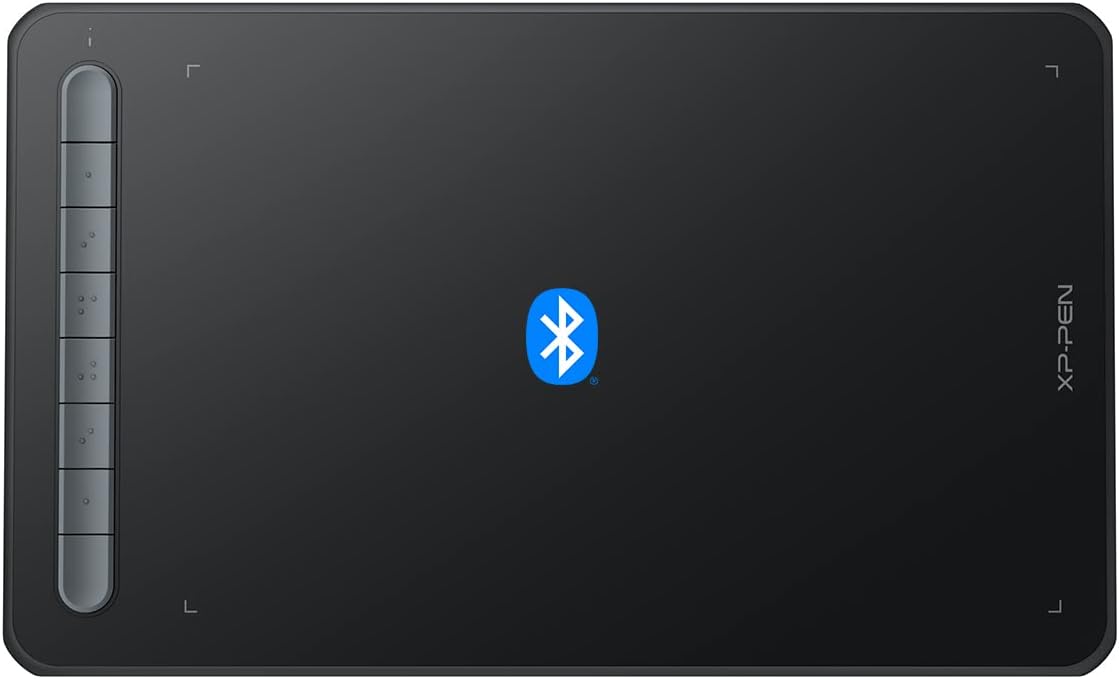
The XP-Pen Deco MW is a versatile 8x5 inch Bluetooth 5.0 wireless drawing tablet featuring the battery-free X3-Smart-Chip stylus with 8192 pressure sensitivity levels and 60-degree tilt support. It includes 8 customizable shortcut keys for enhanced productivity and offers broad compatibility across Windows, Mac, Linux, Chrome OS, and Android platforms. Designed for professionals and creatives, it supports major art software and comes with all necessary accessories and bonus creative software to jumpstart your digital artistry.


| ASIN | B09Z2B6MTF |
| Active Surface Area | 8 inches x 5 inches |
| Additional Features | Online Education,Digital Drawing,Professional Design, Video Edition |
| Best Sellers Rank | #48 in Computer Graphics Tablets |
| Brand | XP-Pen |
| Built-In Media | 1x XP-PEN Deco MW Graphics Drawing Tablet, 1x Dongle, 1x USB A to USB-C Cable, 1x X3 Elite Stylus, 1x USB A to USB-C OTG Adapter, 1x USB A to Micro USB OTG Adapter, 10x Pen Nibs, 1x User Manual |
| Color | Black |
| Compatible Devices | Windows, Mac, Chrome OS, Linux , Android |
| Connectivity Technology | Bluetooth |
| Customer Reviews | 4.3 out of 5 stars 436 Reviews |
| Item Dimensions L x W | 10.22"L x 6.21"W |
| Manufacturer | XP-PEN |
| Model Name | Deco MW |
| Model Number | Deco MW |
| Native Resolution | 1920x1080 |
| Operating System | Windows 7/8/10/11, Mac OS X 10.10 (or later), Android 6.0 (or later), Chrome OS 88 (or later) and Linux Operating System Windows 7/8/10/11, Mac OS X 10.10 (or later), Android 6.0 (or later), Chrome OS 88 (or later) and Linux See more |
| Pressure Sensitivity | 8192 Levels |
| Screen Size | 8 Inches |
| Special Feature | Online Education,Digital Drawing,Professional Design, Video Edition |
| Specific Uses For Product | Drawing, Online Teching, Learn, Work |
| Target Audience | Student, Teacher |
B**E
It's a nice little tablet
I have used Photoshop on Walcom tablets for years. I started doing video editing, and I found that I needed a little more control and wanted something with quick keys. This little guy is great. The Bluetooth is a huge plus. I can just put the tablet away when not in use, and when I need it, it's ready to go! The quick keys work well on my M3 MacBook Pro and make editing the videos much quicker. A couple of things, though: 1. You must have the software running for it to work. Especially if you want screen swapping and quick keys. 2. I needed to adjust the sensitivity, out of the box it was set a bit to "Hard" for my taste. 3. Read the instructions to pair; it's not as straightforward as I thought it would be. But it does take the accidentally unsparing out of the equation. Overall, I would purchase XP Pen tablets again if I need another one or an upgrade.
S**E
Works great
Very easy to use and connected immediately to compute. Easy to carry in laptop bag. Appears to be durable and good for the value for money. Pressure sensitivity is good as well.
M**Y
Hardware Is Solid, But Software Is Lacking
First off, I ordered the Deco MW and use Windows 11. It's great out of the box! It's lightweight, has a long battery life, has a generous amount of re-programmable buttons, and it can directly connect to Bluetooth without using the receiver. Even before driver updates and installing the Pentablet App it still worked right out of the box as a basic drawing tablet. Though, after installing everything I realized how much more functionality I wanted, mainly with the Pentablet Application itself. As someone who takes digital notes, I often use a lot of shortcuts. Commands such as Panning, Undo, and Redo - which are 2 input commands on a specific app I use - are easily configurable in Pentablet. Unfortunately, the same cannot be said for 3 input commands, and actions that require you to hold the button to repeat the command multiple times. Trying to reprogram a button to take something like "ALT + W + 1" results in "ALT + W, 1" which is not the same. Additionally, reprogramming a button to zoom in (CTRL + SCROLL UP) didn't work as intended. When I naturally held down my zoom button I expected it to continue zooming, instead it only zoomed in once and I had to press it repetitively to get what I wanted. The lack of options didn't end there. I'm familiar with using the mouse, so I prefer the Mouse mode since it uses relative coordinates and I can drag the cursor to the area I want, like how you lift the mouse and reposition it to move the cursor further when you run out of space. Unfortunately, mouse mode disables one of the most important features, Pen/Erase. The ability to toggle between Pen and Erase on the same button is essential and frees up one more button on the digital pen. I wish you can manually set a button to toggle between two actions, but that's another feature left out of the software. If you want the Pen/Erase functionality, you have to get used to Windows Ink's absolute coordinates which feels weird to me. Oddly enough, even with all these flaws it still works great for digital note taking. Sure you can't assign an action that uses 3 commands to a button, but you can simply drag the cursor and press that action on the screen. If you're dead set on mouse mode, simply assign each button on the pen to Pen and Erase. Every issue has a solution, albeit slightly inconvenient.
L**F
A must have for all teachers
As a teacher this lets me walk around the room and help my students at their desk and still control the board in front of the room. Easy to set up. Great range. My kids love taking turns controlling the board while I teach. It really gets them involved and helps keep their attention. Long battery life. Easy to write on. Very sturdy since my kids drop it a lot.
C**)
XP-PEN has made a great graphics tablet for roughly $50
this is one of the best graphics tablets I've ever had the pleasure of using for digital art and sundry- it is comparable to the Intuos line from WACOM, but less expensive! am using it on a Windows PC with no trouble, the drivers are unobtrusive and do the job well also, I love that it comes in so many sweet colors, I have the pink one and it is so charming!
L**L
My daughter loves it but the software is trash
XP us to my knowledge not knew to this so I was shocked to find out how crappy their software us. When you plug in the tablet, it works perfectly but once you download the software and run it, all of a sudden your tablet will not work again unless you uninstall it. This makes it useless for anything other than very simple kids drawing fun.
S**R
A really good basic stylus tablet
I can't speak to how this is for advanced users, but I'm a beginner at 3D modeling (Blender) and 3D motion graphics (Unreal Engine), which is why I purchased this tablet. It has done an excellent job for me, not only in my 3D graphics applications, but also in GIMP, where I do a lot of my 2D graphics work. I'm using it to learn to draw as well, taking art classes focused on computer-based graphics art, and I find it easy to work with. My only recommendation is that you plan on going into the software to change the orientation if you use it in other than landscape-left-facing, to change the orientation to your preferred orientation, as I have not figured out, yet (after a month) how to change my default setting to my preferred orientation setting. Other than that, it is a good, basic stylus tablet with good pressure sensitivity and smooth integration (wired) between my drawing programs and the tablet.
M**A
It's not quite for wireless
On Windows 11 when going wireless it lags and jitters so it's difficult to make straight lines when it keeps on hopping around. Works fine wired but was hoping to be able to use what wirelessly so I don't have to bring cables around. This is the first time I saw one of these tablets wireless so I thought you give it a try. I hope in the future it gets better.
Trustpilot
1 month ago
1 month ago