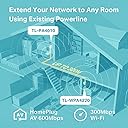
🚀 Power up your home Wi-Fi — no dead zones, just seamless streaming!
The TP-Link TL-WPA4220KIT is a dual-unit powerline Wi-Fi extender kit that leverages HomePlug AV technology to deliver up to 300 Mbps wireless speeds and extends your network coverage up to 300 meters via your home’s electrical wiring. Featuring a Wi-Fi Clone button for unified SSID setup and two Ethernet ports for wired device connections, it’s designed to eliminate Wi-Fi dead spots and provide stable, lag-free connectivity for gaming, streaming, and smart home devices.


| ASIN | B00DHB2T44 |
| Best Sellers Rank | 219,812 in Computers & Accessories ( See Top 100 in Computers & Accessories ) 315 in Powerline Network Adapters 5,891 in PC Accessories 11,384 in PlayStation Legacy Systems |
| Box Contents | Package Contents Powerline Ethernet Adapter TL-WPA4220 & TL-PA40106. |
| Brand | TP-Link |
| Brand Name | TP-Link |
| Color | White |
| Colour | White |
| Compatible Devices | Desktop, Notebook, Smartphone, Headphones, Keyboard, Game Console, Printers, Tablet, Mouse, Speakers, Smart TV, Internet Protocol Camera, MP3 Player, Alexa |
| Compatible Operating System Family | Windows |
| Compatible devices | Desktop, Notebook, Smartphone, Headphones, Keyboard, Game Console, Printers, Tablet, Mouse, Speakers, Smart TV, Internet Protocol Camera, MP3 Player, Alexa Compatible devices Desktop, Notebook, Smartphone, Headphones, Keyboard, Game Console, Printers, Tablet, Mouse, Speakers, Smart TV, Internet Protocol Camera, MP3 Player, Alexa See more |
| Customer Reviews | 4.1 out of 5 stars 1,303 Reviews |
| Data Link Protocol | Ethernet |
| Data Transfer Rate | 300 Megabytes Per Second |
| Data link protocol | Ethernet |
| External Testing Certification | CE, FCC |
| Hardware Interface | Ethernet |
| Hardware interface | Ethernet |
| Item Dimensions L x W x H | 9.4L x 5.4W x 4H centimetres |
| Item Weight | 230 Grams |
| Manufacturer | TP Link |
| Manufacturer Part Number | TL-WPA4220KIT |
| Model Number | TL-WPA4220KIT |
| Product dimensions | 9.4L x 5.4W x 4H centimetres |
T**P
Clarification of set up instructions.
Works fine once you get it set up. Setup is easy if you follow the right steps. I should point out first that if you're happy for the wifi extender to have a different SSID (wifi name) from your main router there really is no set up. You plug the wifi plug in where you want it and the non-wifi plug into a socket near the router and connect it to the router with the supplied ethernet cable. That's it. You're up and running. Log in to the new wifi with the password written on the wifi plug and your computer/phone/tablet will automatically switch from the wifi extender to your router as you go out of range of one and into range of the other. Or you can switch to the best signal manually in your computer's wifi settings. For the technophobes among you this is probably the easiest route but if you are even half-litereate in setting up a network then read on. It all works best if you use the same SSID as your router. If both signals are present your computer will just use the strongest one. The instructions in the quick setup guide say this setup can be achieved by pressing WPS buttons on the router and the wifi plug. Like so many others in these reviews that didn't work for me. I have a Virgin Super Hub router. Also, my laptop has no CD drive so the mini CD supplied is useless. Never mind. There are 2 ways to overcome this - both of which are partially described already in the reviews. I'll just clarify them a bit: 1) Plug the wifi plug in but DO NOT connect the non-wifi plug. The wifi plug will set itself up with a local IP address of 192.168.1.1. So, just connect to the default wifi with the SSID/password written on the plug, type 192.168.1.1 into your browser and you'll be open a log in dialogue for the wifi extender's web interface. The username/password for the web interface is admin/admin (that's written on the plug too). In the web interface you can change the SSID and password to match that of your router. Then plug in the non-wifi plug and connect it to your router. Click the button in the web interface to "reboot" the wifi plug. That will save your settings and it will connect to your network. The wifi plug will get a new IP address from your router so you'll be logged out of the web interface but all your changes are already made. You're good to go. 2) If you want to change the settings after you've connected the non-wifi plug to your router you'll need to know what IP address the wifi plug has been given by your router. I couldn't find that in the list of connected devices on the router interface. If I had a CD drive I could have installed the "utility" program that came in the box. But fortunately it's also available online for Mac and PC. You can download it here: http://www.tp-link.com/en/support/download/?model=TL-WPA4220&version=V1. This link is for a WPA4420 wifi plug. I ordered the WPA4420KIT but found the wifi plug utility better than the kit utility (which just found the non-wifi plug on the network). Depending how Amazon show these reviews you might find you have a slightly different model. No mind, just follow the link as far as ..../download/ and then browse to the model you have. The utility is a file called "powerline scan.exe". When you run it it will scan your network for the wifi plug and reveal its IP address. Then you just click on the "connect" button to open a browser window and connect to the web interface. The username/password is admin/admin unless you changed it before. If you have the non-wifi plug connected to your router, the router will assign the wifi plug a new IP address every time you reboot it or unplug it. That doesn't affect the SSID or password though so you can move the plug without breaking the wifi extension. And that's it. Easy. It did take me about an hour to work out the above but you have no excuse now. You'll be up and running in 5 minutes. I'm happy to report that since set up I haven't needed the scanning utility again and the wifi has behaved impeccably. All my devices just have constant wifi all over the house. It's really quick too. As good as being wired. I've moved the wifi plug a couple of times to get the best location to cover the whole house. It sets itself back up every time.
A**W
A very useful product which works all around the house, though not as seamlessly as claimed
I am very pleased with this as we can now easily get a strong Wi-Fi signal all around the house with various devices, whereas previously there were bad spots where we could often get thrown off-line. Also it was good to discover that the extender will work using any wall socket in the house. I've found that it is not necessary for the two adaptors to be plugged into the same ring main or even on circuits using the same RCD, as long as they are connected to the same consumer unit. I was almost put off by what I had read about the adapters having to be on 'the same electrical circuit', but fortunately, as I suspected, this warning appears in our case to have been unnecessarily ambiguous. The instructions are not well thought through and were very confusing at first, especially as there were two different sets in the box, one for each of the plugs/adaptors. But after a bit of thought, and once I realised that some of the instructions (eg about pairing buttons) were not relevant to me, it was straightforward to set up first of all as a separate wireless network. (Simply connect the ethernet cable first, starting at the router, before plugging in the adapter, then just plug in the extender wherever required.) I later followed up to set up an extended unified network instead, using the Wi-Fi Clone button, as instructed. This took quite a while as my VirginMedia wireless router didn't seem to have a 'WPS' button at all, but eventually I learned that I just needed to press the lit logo on the side. The cloned extended network is definitely an advantage using an iPad-Mini. But I can't get a seamless service using my MacBook Pro or Samsung Smartphone. Once these are picking up a strong signal from the unified network, either directly from the router or from the extender plug on the other side of the house, these devices seem to get locked in to whichever is picked up first, and so the strong signal is not maintained when I move across the house towards the other. So just occasionally I need to intervene to get a strong enough signal. In the case of my Smartphone, it doesn't matter so much to me, but I if I was bothered I would get a better result by re-setting the adaptors and setting up again as a separate wireless network, as my phone will automatically switch itself over to a stronger network whenever required.
R**S
Fantastic product: Fast, Reliable and Backwards Compatible
I purchased this kit to give a reliable and fast cabled connection to my laptop and a reliable WiFi signal for my phone. I already own a pair of AV200 plugs at my parents home* but the wireless router at my student house at university is pretty unreliable. The wireless signal is very hit-and-miss and doesn't work at all in some corners of the house (my room specifically!). One of my house mates already owns a pair of AV500 plugs (but without the WiFi element) so I only need to use one of my plugs to connect to his existing Powerline network. The plugs are quite easy to configure. For the existing Powerline network, I merely had to hold the 'Pair' button* on one of my house mate's plugs for one second and then do the same on my own and it worked straight away! The WiFi hotspot is created automatically and has a default network name and password (provided on a small piece of card you can stick to the wall) so you can use it with no extra set-up. In my case, I wanted to clone our existing Wifi. This can be done with one button.*** The improvement after installing these plugs is fantastic! The wired connection provides a much more reliable speed for video gaming on my laptop and the WiFi now extends all over the upstairs of the house for phones and other devices. My house mates have noticed a definite improvement in their wireless connection too, as the hotspot produced by the TP-LINK hotspot is much faster and reliable than the ISP-provided router. Included in the box are two 2m RJ-45 Ethernet cables, which is handy for setting things up. The Powerline connection is 500Mbps and the WiFi hotspot speed is 300Mbps. This product was as easy as I expected to set up and has improved my internet experience more than expected! *These AV500 plugs are backwards compatible with AV200 plugs and also work with AV600 and AV1200 products, but the speed of the Powerline network is limited to that of the slowest one on the network. See the TP-LINK Powerline FAQ for lots of useful info. **Note that unlike the Pair button on the AV200 plugs, which have to be held for 30s to actvate the pairing mode, the button on the AV500 need only be pressed for 1s. *** It is also worth noting that for one-button setup of the WiFi cloning, you must press the WPS button on your router first, which isn't explained very well in the quick start guide. For routers with no WPS button, like mine, you can manually configure the SSID and Password of the hotspot to be the same as your existing wireless network. You can do this in a couple of minutes by accessing the config page for the hotspot, which you can get to through the Resource CD provided in the box.
A**T
Setup far from smooth
I'm giving this a three chiefly because of the frustrating setup. 'no configuration' it isn't. 'Push a couple of buttons and you are done', nope. Took two hours. However, once up and running it seems to work pretty well. So what happened? There are two sets of 'quick installation' instructions with the kit, which is a little confusing. Spending some time, it became clear that one set was only about setting up a wired connection, the other for wired and wireless. The whole point for me was to extend the wireless network, so I took that one, but not after first doing the other one. I plugged the small adaptor into the wall socket near the router, plugged the ethernet cable between the two, went upstairs and plugged the larger (wi-fi extender) box into a socket upstairs. I got the impression that it would pair up automatically, and perhaps it would, but in fact I did the 2-second button press on both anyway, and they paired just fine. So far, a five star effort. Next, read the other quick installation guide, where it says to plug the wi-fi extender close to the wi-fi router, press the WPS button on the router for 2 seconds, then the button on the front of the extender (not the little pairing button underneath) for 2 seconds, and watch the pretty lights. I watched the demo on youtube, but it never did what the youtube video showed, the lights just never did that, it did the fast flashing straight away, not slow flashing for twenty seconds, then a little fandango and finally fast flashing. I tried this multiple times, and also did the reset (little hole underneath) and tried again. Nothing. It always showed as a separate wi-fi network called 'TP-Link...', which I couldn't log into. It definitely wasn't copying the SSID and password from the router. Check the PDF manual online. You don't get this manual with the device, nor a reference to it, I think. You do get a cd-rom, but it is one of the mini ones that only work with tray-loading dvd drives, so useless. OK, so I learn that the extender has a web interface. It says if you are connected wirelessly you can go to http://tplinkplclogin.net but I couldn't connect via wireless. I plugged in my Macbook Pro over ethernet, but that address didn't work. I noted that it gave me an IP address of 192.168.1.67 so I tried entering 192.168.1.1 in the browser, and got a password dialog. Entered 'admin' for both and got in. In there, I set the SSID and password manually to match my router, rebooted, and no it worked! Now it is up I like it, but I can imagine a lot of people getting very frustrated setting it up. UPDATE: I was finding that although my Macbook pro and all the iPads could connect easily to the router as before, my iPhone would not even see the network, but if I took it upstairs would connect happily to the extender. Also, the Mac upstairs (which is more or less equidistant between the router and the extender) would keep dropping its connection. A family member's Dell would not see the network at all and had to use ethernet. This was with them sharing SSID and channel to make a seamless wifi zone. So I made the channels different, channel 1 on the extender and channel 11 on the router itself (still sharing same SSID and password), and now it all works fine, everything can connect everywhere. I searched on the web for info about channel settings, but it was ambiguous.
A**T
Amazing kit and it improved my wifi significantly
This is the first powerline extender that I've ever used and I'm very glad I bought them. I live in a 3 storey house and the main router is on the ground floor and my room is on the top floor, which makes the wifi signal in my room very weak. When I first moved in the house, I complained to the landlord that the internet is not working in my room, so he upgraded to Virgin 100MB service and Airport Extreme, thinking it might fix the issue. But it only improved the connection speed to only barely usable level, not been able to stream videos or play online games(haven't used my chromecast for a while and renewed my PS+ because of that). First, I tried a TP Link wireless extender that they already have, with no significant improvement on speed/stability. So I bought an airport express, thinking better quality product, might give me a better connection. It improved the speed a little bit, but I'm only getting around 5-10MB/sec where the actual service can handle up to 100MB/sec. So I did more research online and found out about these powerline extenders. I thought I'd give it a go as I thought it could be suitable for my situation and purchased them. The setup was so easy with these. I've plugged the 1st adaptor to the extension lead(I know it's better to use the wall plug, but because of the location of the main router, that's my only option), connect to Airport Extreme with ethernet cable. Plug in the 2nd one in my room and pressed the pair buttons in the space of 2 mins(you can do that beforehand as well). Then, used the network name and password provided, and that's done, all set up.I've got around 30MB/sec straightaway and could see the significant improvement on the speed. I've hooked up my ps4 with the ethernet cable as it gives a 5-10MB/sec faster speed compared to wifi, now everything works perfectly. It's only been 3 days that I started using, but never experienced any connection drop or significant fluctuation in the speed yet. Now I can stream all videos and play online games again. Happy customer!! I would recommend this product to anyone in the same situation as me. My suggestions would be: to use the wallplug if you can, use ethernet cable where possible(to your game console/smart TV that are stationary as it provides 2 ports) and move around the 2nd adaptor in your room to see where it gives you the best wifi.
J**N
Great (once you read the manual!)
I'm using this as an extender in my garden office. I was concerned at first that it wouldn't work on a separate ring main, but its actually fine. The WiFi cloning works a treat and just works, once you actually follow the instructions on how to use it (RTFM). HOWEVER! I did have a problem in that my phone would hang on to the connection in the house while I was in the garden office (only 1 bar), rather than picking up the stronger signal in the office (4 feet away). It would eventually switch over once it had dropped a few packets, but it wasn't reliable. I'm sure this is a failing of Android, but it was very annoying. As such, I created a new WiFi hotspot on this and if it hangs on to the connection, I can just manually swap it over. I'm using this with a Netgear GS308-100UKS 8 Port Gigabit Ethernet 10/100/1000 Mbps Switch and the speeds are great. I have a NAS box in the house for all my data storage and the speeds copying to it are just as I would have expected. I was going to give this 4 stars because of the WiFi issue, but in fact the box does exactly what it is supposed to do, and the connection issues are OS specific (my laptop didn't tend to do it) so it's 5 stars.
M**S
Great product that works well, although not always as simple to set up as stated....
I bought this device for our 2-bedroomed, ground floor flat, which has very thick walls which block pretty much all radio signals. So, our wifi worked perfectly in the living room, but nowhere else! Now, when set up, this product works brilliantly, however, I'd like to thank the Amazon community for warning me of some of the difficulties that can be faced during set up. Having read the reviews here, I was prepared to potentially need to put some work in in order to set these up. Please bear in mind though that I am very technically minded, in fact I fix computers for a living, affording me a high degree of understanding networking and computing etc, and I was disappointed to find the "One-Touch Super Range Extension" experience was not as advertised. I could not get this function to work, after several attempts. In order to set this device up, I had to plug the smaller base unit into my Virgin Superhub via ethernet, then plugged the device into the wall. I then plugged the larger, extender unit into the room where at the back of the flat, where I wanted to extend the wireless range to. I then pressed the pair button on the base unit, then legged it to the other unit and pressed the pair button on that, which worked straightaway. Once this process was complete, I would view the router as a joinable network with all of my devices, but I could not login to it, as it had the default router name and default password (and this default password was very difficult to uncover). I use a MacBook Pro, and therefore, I could not use the disk that came with the device that allows you to login to the router and change the settings (it's a mini sized disk that will not fit into most conventional optical drives). I did find out how to do this via the TP Link website after some searching, and, after assigning a static IP to the router with ethernet cable plugged into my Mac, I was then able to change the default name and password to match that of the Superhub. This then allowed me to have all of my devices seeing and logging onto the extended network automatically. Once set up, it works perfectly. I was impressed to note no drop off in the 50MB speed I get from the 'master' super hub, when logging on through the device and it's been seamless since setting up a couple of weeks ago. I just wish it was made a little clearer how to set this device up as the enclosed "quick start" instructions are not very clear at all.
N**O
Plug & Play in all its glory!
The easiest kit I've ever had to set up! Literally plug-and-play. 1. Plugged in the Wireless extender unit close to the router. That could be anywhere in the same room, you don't need to physical plug the WiFi extender exactly next to your router. (the WiFi extender unit is the larger one of the two items in the kit). 2. Pressed and held the WPS button on my router (the circular blue button in the front of my Virgin Media Super Hub. This could vary depending on your router). 3. Waited for my router WPS button to start blinking Blue/Red, which indicates the router is expecting a device to request the router to Clone its WiFI settings (SSID,password) 4. Pressed the WiFi Clone button on the WiFi extender unit (the button is the bottom led in the front of the unit). 5. Waited a few seconds for the WiFi Clone light to change from flashing slowly, freezing momentarily and then to flashing fast. 6. Confirmed that there was no TP-LINKxxx SSID appearing on my iPhone (if it does, then the cloning process didn't work or you pressed the wrong button in the unit). 7. Plugged the powerline unit in a wall socket and connected the ethernet cable to the router. 8. Unplugged the WiFi extender and plugged it at my desired location (my kitchen has little or no signal from your router in the living room) 9. In a few seconds, I could connect my iPhone to WiFi to the same SSID as the one of the router, offering a seamless WiFi experience, where your WiFi devices hand over seamlessly between your router's WiFi and the extender's WiFi signal. If your router doesn't have a WPS feature, you can still use the WiFI extender but need to manually enter the password given at the back of the unit after connecting to a TP-LINKxxxx SSID. The problem with this setup is that if your WiFi device moves away from your router (with its usual SSID) to the location in the house where you've installed the WiFI extender, there is a chance that your WiFi device will still cling on the weak signal from your router and you would have to manually select the TP-LINK SSID from your device's WiFI menu. The same problem would occur when you move back to where your router is and the signal from the WiFi extender is enough to make your device cling to it. A way around could be to make your router SSID and password the same as your TP-LINK extender SSID and password. Haven't tried it, but it's worth a shot.
Trustpilot
1 day ago
3 weeks ago