Buy anything from 5,000+ international stores. One checkout price. No surprise fees. Join 2M+ shoppers on Desertcart.
Desertcart purchases this item on your behalf and handles shipping, customs, and support to Vanuatu.
🖌️ Elevate your digital art game with precision and speed — don’t just create, dominate!
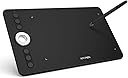
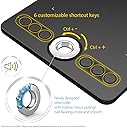
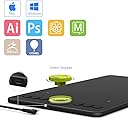
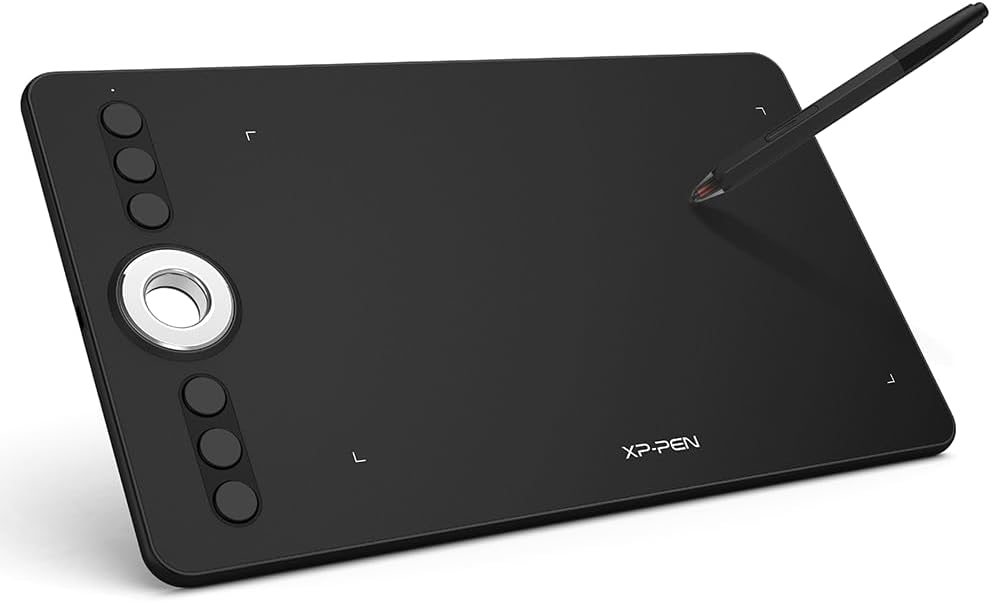
The XP-PEN Deco 02 is a professional-grade graphics tablet featuring 8192 levels of pen pressure sensitivity, a spacious 10 x 5.63 inch active drawing area, and 6 customizable shortcut keys. Its unique hexagonal stylus offers a natural pencil-like grip with a non-slip design, enhancing control and comfort. Compatible with major operating systems and design software, this tablet is engineered to boost productivity and creativity for both right and left-handed users.


| ASIN | B07D6MNGY3 |
| Active Surface Area | 10 x 5.63 cm |
| Best Sellers Rank | 39,862 in Computers & Accessories ( See Top 100 in Computers & Accessories ) 86 in Graphic Tablets |
| Box Contents | 1 x Deco 02 tablet, 1 x battery-free P06 stylus, 1 x pen holder, 8 x replacement pen tips, 1 x Type-C USB cable, 1 x green stopper, 1 x drawing glove, 1 x quick start guide (English language not guaranteed). Not in English) |
| Brand | XP-Pen |
| Brand Name | XP-Pen |
| Colour | Black |
| Compatible Devices | Personal Computer |
| Connectivity technology | USB |
| Country of Origin | China |
| Customer Reviews | 4.3 out of 5 stars 271 Reviews |
| EU Spare Part Availability Duration | 1 Years |
| Item Dimensions L x W | 25.4L x 14.3W centimetres |
| Item Weight | 600 Grams |
| Manufacturer | XP Pen |
| Manufacturer Part Number | EUDECO02 |
| Model Name | Deco 02 |
| Model Number | Deco 02 |
| Model name | Deco 02 |
| Native Resolution | 8192 pressure levels per inch |
| Network Connectivity Technology | USB |
| Operating System | Windows oder macOS |
| Operating system | Windows oder macOS |
| Pressure Sensitivity | 8192 Levels |
| Pressure sensitivity | 8192 Levels |
| Product Features | Electromagnetic Resonance |
| Screen Size | 10 Inches |
| Special feature | Electromagnetic Resonance |
| Specific Uses For Product | Animation, design, edit, drawing, painting, 3D modelling, sketching, tracing, graphic design, art painting, digital art |
| Target Audience | Student |
| UPC | 758232358023 |
S**H
Excellent tablet at this price point.
I've been using my new tablet for a bit under a month and a half now - about 5 weeks all together. I bought it because I do 3D graphic work, and graphic design which gets very hard to do using a mouse with a "single pressure" mouse button. My previous tablet was smaller than this one and I kept hitting the borders far too much. (relative pen movement!) The physical aspects of the tablet are good - it's very sturdy. The internals of the tablet must have a metal frame, because even holding it in my left hand and drawing with my right was easy to do, and it didn't bend nor flex - or even squeak a little. Though it's best to use a tablet on a flat worktop rather than in your hands. On the reverse side there's 4 wide circular feet that stop the tablet slipping on your desk. The buttons need a light finger touch to click, but give a good "clicky feedback" when pressed. Importantly they don't fail to make contact once you've felt them "click", which can be very frustrating and something I keep a purposeful eye out for. I wondered if it was because they were new - but after 6 weeks of use, they still work entirely well. If you've not come across this before - it's when a button fails to trigger when you press it till it clicks - until you press a little bit harder. The worst case is where it ruins the creative flow - say when you switch from flood fill to draw using a button, only to find you've just filled the entire sky because the button wasn't detected! The wheel is an interesting and modern addition to the tablet. It works on its own - and the chrome is grippy enough that it doesn't slip. It's my preffered way of using it. If you want even grippier material - the tablet comes with a green rubber "puck" that pushes gently into the hole of the wheel. With or without the puck, the wheel behaves the same. It has a smooth friction feel to it - like spinning the volume control on a HiFi. It doesn't spin around like a loose toy wheel on a truck. It doesn't "click" as you spin it, it's a smooth rotation. It can be used to replace two buttons on the keyboard - one for rotating left, and one for rotating right. So for instance you can use it to zoom a canvas, or rotate an object around an axis in 3D. While setting it up, I found I could scroll a web-page with it! It behaved very much like a mouse-wheel! (without the click-click-click) The wheel is covered on the underside of the tablet though the hole goes right through. It means you won't find the spinner sticking if you put the tablet on a couch armrest. The tablet has a USB C plug situated just to the side of the spinner. These plugs can connect either way around, so the USB 90 degree angled cable can still be pointed downwards (towards or away from you) if you swap hands and rotate the tablet around. You get a slippy spandex type of glove to stop your hand from catching on the smooth tablet surface - I found I haven't needed it. If you're hands are not super dry or a bit oily, the glove will stop it stuttering over the surface. The tablet during use is fantastic. The "report rate" is 266 - which means the tablet lets Windows know where the pen is 266 times a second. That's a position update every 3.76 milliseconds! I was NOT able to notice any kind of delay with such a short latency. It felt I was drawing on the screen. The pen of the tablet is very well designed and light in use. It's very grippy on the fingers (as they mentioned in the product details). I've never had my fingers slip down the pen and need me to correct the positioning of my hand. Which they have done with other tablets I've used. It's a very light pen, which you may need to get use to if you've used pens in the past with batteries in them. Having no batteries means you never get caught out! If you use it with your laptop on the go - if your laptop has power so to does your pen! The clearance distance of the pen is about 3 centimeters - which is excellent. It means you can take the pen 3 cm up from the tablet while still being able to control your cursor. Not so important for absolute cursor positioning - because the cursor will re-adjust on the screen when you place the pen back down. But VITAL for relative cursor mode. When you're not making pencil marks, you have a good distance away from the tablet before the pen loses contact - and stops moving on the screen. A pen with less clearance is annoying to use, you stop writing and lift the pen, and your cursor vanishes! You end up battling with the device playing "hover pen" a millimeter away from the tablet trying not to draw but keeping it close. Not so with this pen. GOOD. The pen tip can "feel" 8192 levels of pressure. I've found this is far more than I need, and for my uses just half that is needed for drawing, sketching, and molding. The extra sensitivity is NOT wasted though - using the configuration software I set it up that 4000 "pressure" (half force on the pen tip) is set at maximum. It's like going from a 2H pencil to 2B. It meant I was able to draw a heavy mark with much less pressure than I would otherwise need, AND not lose accuracy on pressure readings because I still had 4000 pressure levels! As an extra bonus - the pen nibs also last longer. If you want that huge range of 0 to 8192 pressure levels, you don't need to tweak anything to start with because that's how it's set up. I had a problem with the eraser in Photoshop to begin with. I found it went from "No erasing" to "Full erasing" with barely a touch. It wasn't the pens fault though! I looked later in the "Erase tool" settings in Photoshop, and they were all incorrectly set. So a little tip - the "eraser end" of the pen uses the "Erase tool" settings of Photoshop. It doesn't just change the ink color of the pen tip, or use a unique "eraser tool" for tablets. The eraser tool works well, and its pressure control is accurate. To use it you just flip your pen around. There's one button on the side of the pen - it's default is to "Right click" - in Photoshop this will bring up the "Pen settings" local menu. There's 6 replacement pen tips in the pen caddy - which will last you months, if not years - depending on the frequency you use the tablet, and the maximum pressure you use to draw. There's a little metal disc inside the caddy that you use to press the pen's tip against to pull out an old warn tip before you insert a new one. There's YouTube videos showing you just how to do this if you google XP-Pen tip replacement video. I didn't have any setup issues in Windows 10. Once I plugged it in, Windows detected it, and after a few seconds it reported it was installed. The software that comes with the tablet is accessible in your system tray. Normally you'd see this in the lower right of your screen. It comes with all the usual tablet controls: 1: Relative/Absolute positioning. (relative is like a mouse behaves - if you pick the pen off the tablet and put it down again, the cursor carries on from where it was at. Absolute is where the pen position ON the tablet is where it appears on the screen, so if you pick it up on the lower left of the tablet, and place the pen on the top right, your screen cursor will ALSO jump to the top right.) 2: Pen pressure - This is great! You have a "line chart" that you can adjust. For me I had a very steep line hitting the top power half way across the chart. This is the equivalent of maxing out the "software cursor pressure" at half-pressure of the physical pen. It's a great finger fatigue tip! There's a little bar that shows you how hard you're pressing. If a program isn't detecting your pen presses, you can use this panel to check the tablet/pen is working, and then blame the other program (I've yet to have my tablet glitch). This is VITAL when looking for tec-support, as a particular software glitch isn't something XP-Pen can solve, and you'd waste time contacting the wrong people. 3: Area of screen - You can set what part of the screen the tablet is for, and which monitor if you have more than one. 4: Action buttons / Roller wheel - These can be configured to be any keyboard keys, and also with a system key, such as Alt, or Ctrl. You can assign different programs different key assignments. (YAY!) The wheel also inputs as key presses. (As does a mouse wheel internally). So anything you can do by the keyboard, you can assign the wheel or buttons to do. Cons: I'm really having a problem thinking of any. It tracks the pen accurately, the software works without crashing, the pen pressure is consistent. The cable doesn't fall out, nor wiggle. The response time between the pen moving and the screen is less than 4 milliseconds (instant). The tablet is not flimsy. Oh - the pen feels a bit "cheap" for a tablet. But that's only because it's lightweight because there's no battery! I've not damaged it in a month and a half use. It's still going strong. If anything a lightweight pen is better! Less strain on the hand. And do I really want a weight "lie" of some chunk of metal inside the pen to weigh it down? No! It's the same weight as a "real world pencil" like a Derwent Pro pencil. So once I got use to it, it was like using a real pencil and not a tablet (battery filled heavy) pencil. If you were to get a cheap tablet you end up fighting with it. You are struggling to use a glitchy pen on a scratchy PC tablet that's moving a cursor on the screen a fraction later. Not this tablet! It's a joy to use. It gets out of the way while I'm drawing. After a minute or two I'm using a pencil connected to the screen - I do my art, and my tools help me. They're not hindering. The performance at this price level is excellent.
R**R
Great tablet, and mostly works in Linux too!
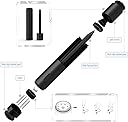
I currently use a Wacom Bamboo Touch, but was looking for something just a little bit bigger, and a bit more modern looking. I went with the XP-PEN Deco 02 as I liked the idea of the wheel, and the price was good. I'm a long time Linux user, so I wasn't sure if the Deco 02 would work with Linux, but it MOSTLY does. OK, the wheel doesn't work (currently) in Linux, but the professional look of the tablet, and the design of the pen, more than makes up for it. Let's face it, you buy a graphics tablet for the pressure sensitivity. As long as that works I'm good. I always use the keyboard for shortcuts anyway. The tablet is nice and thin with the wheel middle left which has three shortcut buttons above it, and three below it. Supplied is a lime green rubber 'plug' which fits into the hole in the wheel giving you a knob to turn for whatever you assign to the wheel. The pen is shaped more like a traditional hexagonal pencil (which I REALLY like), battery-free and made of a nice firm rubber with plenty of grip to it. It has a nib already fitted, an eraser on the other end, and a customisable button in the middle of the pen. It comes in a nice hard storage tube which feels like it's made of metal. One end unscrews to take the pen in/out of the storage tube, and the other end of the tube unscrews to give you access to the eight spare nibs. If you use a tablet as much as I do then you always need spare nibs. A nice touch is that the tablet comes with a drawing glove. It's essentially a glove that covers the last two fingers of your hand to stop your hand smearing the tablet (or screen as you'd see in some devices). Pressure sensitivity (in Linux anyway) can be adjusted in your chosen software. I mostly use MyPaint and it has a line graph in settings to adjust pressure sensitivity. This tablet is definitely worth the money. Even with the wheel not working in Linux it still elbows out my (now old) Wacom Bamboo Touch. It can take a while to adjust your drawing to the many levels of pressure sensitivity this tablet has, but once you have the right settings in your software it's a joy to use. NOTE: I've asked XP-PEN and they're currently working on a Linux driver (currently in beta and downloadable from their site) which we can but hope will make the wheel work in Linux. If, for whatever reason, your distro doesn't detect the Deco 02, you can try installing the DIGImend drivers to see if that helps.
M**E
Great tablet at an affordable price.
To start off with, I would like to mention that my last two previous tablets were both Wacom Intuos tablets, a more expensive and well know brand. This was my first time trying out a different kind of tablet. While I expected the tablet would work decently, I was not expecting much for the cheaper price but the Deco 02 as surpassed all my expectations. I adore this tablet. I take it almost everywhere with me, which is easy seeing as it is so light and easy to transport, and use it all the time. I have been using the tablet for over a month now and it has shown no issues. Any driver problems, which were a regular occurrence with my old tablets, have not happened at all with this one and it remains slick, responsive no matter how long I use it for. It was easy to install and ran smoothly from the get go. It was delivered quickly and within the estimated delivery time, and the tablet came with various useful extras, including an artist's glove and a cylinder compartment for storing the pen as well as it's extra nibs. The Deco 02 is able for both right and left handed use, has a work space of 10 x 5.63 inches and a pen pressure level of 8192. The tablet has been used in a variety of programs, Adobe Photoshop and Animate, Clip Studio Paint, Toon Boom Harmony, even just for using an internet browser and it works flawlessly in all of them, no compatibility issues at all. I do have issue with the tablet's pen, however. The pen itself is fine, incredibly light and comfortable to hold, but its the button on the side of the pen that I have issue with. It has been designed so that it is flat against the surface of the pen, rather than extruding out, but this makes it really difficult to press. It can be a real pain to have to stop constantly to search for the button in order to press it, something that would take less than a second if it was make more obvious against the pen's surface. It's such a tiny detail but I feel it makes a world of difference. Overall, I feel like this is a perfect tablet for beginners, being really simple and easy to set up and use while not being as expensive as others. The only issue I have had with it so far is with the pen's button and other than that, I am extremely happy with the product and plan on using it for a very long time.
C**I
Great and easy to use!
The XP-Pen Deco 02 is a great upgrade from the wacom drawing tablet I have now. From the packaging to the overall performance of it, it is amazing. It's much larger and has a sleek design so it's not all over the place. The packaging is very nice and simple and not overflowing with confusing cords. It has all the information booklets. Also including the tablet, a green plug, a pen that comes in a case with extra nibs, and a glove to prevent smudging. As a digital artist, the express keys are key in my art. They are all customizable to fit your experience. They work really well and even have an option for left handed and right handed people. The wheel is very smooth and it is nice to have the little green plug that can be used for easier turns to it. The pen is very nice and thin and comes in a nice little case for it. The case also has hidden features of an eight nib holder, and the lid can become a stand to hold the pen when not using it. It comes in a hexagonal shape and has a nice grip. It also has and extra feature of an eraser at the end. It has an additional button in the middle that you can customize. It is a little hard to find it when working, but it is also good that I'm not pressing it when I don't need it like my other pen. The glove is a nice added on feature that I love very much. It covers the last two fingers and prevents your hand from smudging the tablet and screen. When setting up the Deco 02 it was pretty easy. In the included booklets it has all the information you need to set it up. When plugging it in it works straight away, you just can't use the express keys. During the set up you can customize the express keys, and the pen. You can also choose whether it will be for left handed or right handed people. You can also choose the pressure sensitivity. So far the Deco 02 has worked with both FireAlpaca and MedibangPaint Pro. Overall this is a great tablet and I would highly recommend!
A**N
Good tablet but the pen could be better
I bought this for drawing design sketches and 3D modelling on my computer and have been impressed so far. I found that I adjusted to drawing on it faster than I expected and it has been easy to use. Pros: - The whole item feels very high quality and the packaging is excellent. - Pressure sensitivity is great and being able to adjust the pressure curve in software is a must-have feature on a graphics tablet. - Pen is light and comfortable to hold - No batteries required - Scroll wheel is a useful feature - Macro Keys - Good size - Nice surface quality - Comes with a sturdy pen holder and extra nibs - Comes with a detachable usb-c cable - You can assign a macro key to switch what the scroll wheel adjusts Cons: - My biggest complaint is that the button on the pen (right click) sits flush with the pen and I can’t find it without looking at the pen. It really slows down your workflow when you go for right click and have to pause and find it on the pen. You can get around this and assign one of the keys to right click but this seems like a design flaw and holds it back from being a 5* product in my opinion. - The driver software interferes with my PC shutting down until I force shutdown for some reason. - Pen holder is a tall cylinder and so it rolls around your desk unless you leave it standing up which looks odd. Why not make it the same shape as the pen so it can lay flat?
K**Z
Misleading product listing
misleading information. the tablet does not come with the hexagonal design pen. it comes with a normal round pen.
D**Y
Amazing quality and portability for a great price
I haven't used a graphic pad tablet for a little while since I upgraded to a screen tablet, but I really needed a tablet that was portable enough to carry around with my laptop to all sorts of locations, and I wanted to try a brand other than Wacom as my last graphic tablet broke after 2 years, and I stumbled across this brand and wanted to try them out. I can say with enthusiasm that I absolutely LOVE this tablet. In ergonomic terms it is extremely cleverly designed. It's extremely thin as a tablet, and very lightweight so it could be slipped easily into a laptop bag or a briefcase. There is also a hole through the scrolling wheel that allows you to hang up the tablet on a hook. The pen also comes in a wonderfully designed travel capsule that contains the pen safely, the pen nibs and also converts into a pen holder; I've never seen a design like this before and it's honestly so refreshing and clever. In terms of usage, the driver is extremely simple to setup and use, it's not too complicated to be off-putting but also not so simple that it limits what you can do. The 6 hotkeys on the side of the tablet can be configured to just about any keyboard shortcut, photoshop command, windows command and even to switch between screens. The scrolling wheel can also be changed from zooming, to volume, to brush size etc etc so it really can be customised so extensively to your optimal user experience. One thing to note is that this model doesn't have a wireless option, but if you want this feature, the Deco 03 model has a wireless option, so consider looking at that if that's a key feature you need. Overall I'm beyond impressed with this tablet, and I really hope more people are encouraged to buy this tablet as it really is such a good model, and I will be using this heavily during my travels!
H**Y
A Surprisingly Good Tablet
I'd never heard of XP-Pen before buying this product. I've used a lot of tablets from different brands before picking this one up and honestly a lot of the design elements appear, at face value, bizarre. So much so that I had to try it. I'm genuinely very impressed with the result. I can't speak for the lifespan of this tablet but so far I'm incredibly happy with it. The packaging is sleek and quirky, which you want in a product over $100, and a lot of the features seem stylish in person. It has nice little quality touches - such as a nice opening lid and the fact that the cables are reusable velcro (not wire and plastic) ties, that make it feel like a quality product. The only fault I could find with the packaging is that they don't give you the direct download link to the correct driver but instead a link to their general downloads web page. You need the most recent Deco driver and it isn't hard to find or install, just a little confusing if you've never had to do it before. Aside from that I really love it! The tablet itself is very light in weight for the size and, even though it's a little smaller than my current tablet, I haven't felt too bereft of workable area when using it. If a large drawing area is important to you that is something to consider. As for the buttons on the tablet - they work fine but are pretty standard if a little noisier than I expected. It's the metal roller wheel (the hole in the tablet) that steals the show. This can be used to scroll web pages, change volume and zoom in and out of drawing software very intuitively. It feels responsive and satisfying and I can see myself using it a lot, which is surprising because when I ordered it I couldn’t really imagine what it would be useful for. They do have these in more expensive brand tablets that I've used in the past so I was surprised to see it in a tablet going for half the price. Because it physically spins this one is really satisfying to work with, plus it looks cool. Definitely the selling point of this tablet. The pen itself is also really great. Lots of other tablets come with either a strap to hold your pen or an ink well. The Deco 02 comes with a full pen tube, I think for travel purposes? To stop you from losing it? I thought the pen container was going to be the most intriguing part, but actually I'm really impressed with the pen itself. Xp-pen advertise that their pen is hexagonal and feels like a real pencil - which is true. This tablet pen is the size of and feels like holding a normal pencil. It's tiny. I genuinely don't know how they did it. Additionally, it has an eraser on the end so while drawing you just flip it and erase, another feature I've seen in pricier tablets. The pen pressure is an upgrade for me and I haven’t noticed any lagging or glitching at the edges of the tablet when drawing. One thing to note is that, because it's literally the size of a pencil, the right-click button on the side of the pen is built into it, rather than being a raised button. If you're new to using it (or have really large fingers) this means it might be hard to find and click. But I really like it, it’s the coolest pen I've ever used in a tablet. Another thing to note is that when plugging the cable in you have to push it in until it clicks. I spent 20 minutes thinking I had a connectivity error when really I just hadn’t plugged the cable in correctly. It feels a little terrifying to shove cables into your nice brand new tablet but that's how it works. Overall, I'm really impressed with this tablet. I had genuinely no idea what to expect and I'm pleasantly surprised. I was lucky enough to get money off on this tablet as it was on sale, and if you’ve never used a graphics tablet before it's full price it can seem a little steep. But if you want a tablet with these kind of features, like the roller wheel and pen, I know I could be paying twice the price for them. This does come at the cost of workable space, especially if you like a large canvas to draw on. But for me personally, who doesn't have a fixed desk and moves around a lot, this tablet is a good middle ground. Lightweight and small enough to have on my lap if needed, but not cramped for my hand. Very happy!
J**N
Très bonne tablette
Après de longues recherche afin de m'acheter ma première tablette, j'ai décidé de prendre cette deco 2. Elle fait très bien son travail, très précise, on peut faire de très jolies choses avec. Je la trouve facile à utiliser et à programmer. Je suis très satisfaite de mon achat! La boîte comprend le câble Usb-C-, le gant, le stylet ainsi que le pot à stylet et des mines de rechange. Le seul petit défaut que je lui trouve est qu'elle se raye très vite, dommage que la marque ne vende pas un film de protection...
L**S
Ne fonctionne pas
Ne marche pas. La tablette est allumée et connecté mais pas moyen de bouger le curseur. Et même en demandant de l'assistance par mail, pas la moindre réponse. Extrêmement déçu.
R**O
Compra confiável, entrega antes do prazo.
A mesa é de excelente qualidade e muito eficiente, prática. Satisfeito com a compra.
S**O
Oltre le aspettative.
Non avendo mai avuto a che fare con questo tipo di prodotto, mi sono fidato delle recensioni e dall'ottimo rapporto caratteristiche\prezzo. Spedizione come consuetudine, velocissima. Appena arrivata, installata quasi immediatamente e senza alcun minimo problema. Il pc l'ha riconosciuta immediatamente. A corredo si trova un astuccio dove all'interno ci sono altre punte di ricambio e un semi guanto da indossare preferibilmente durante l'uso. Ottimo prodotto oltre le aspettative come qualita' e facilita' d'uso. Soddisfattissimo, la consiglio assolutamente.
A**Y
Ein gutes Produkt
"Mein Grafiktablett ist eine echte Bereicherung für meine kreative Arbeit. Seine Empfindlichkeit und Genauigkeit ermöglichen es mir, meine Ideen mühelos umzusetzen. Besonders praktisch ist das einstellbare Scrollrad zur Änderung der Pinselgröße - das war der Hauptgrund für meinen Kauf. Alles in allem bietet das Gerät genug Komfort und Effizienz für meine kreativen Prozesse. Ich kann es nur empfehlen!
Trustpilot
1 week ago
2 weeks ago