We remain fully operational. Our teams are working around the clock to ensure your deliveries continue safely.
DOWNLOAD THE APP


Copyright © 2025 Desertcart Holdings Limited
DOWNLOAD THE APP






🕸️ Gryphon: The Smart Shield Your Home WiFi Deserves
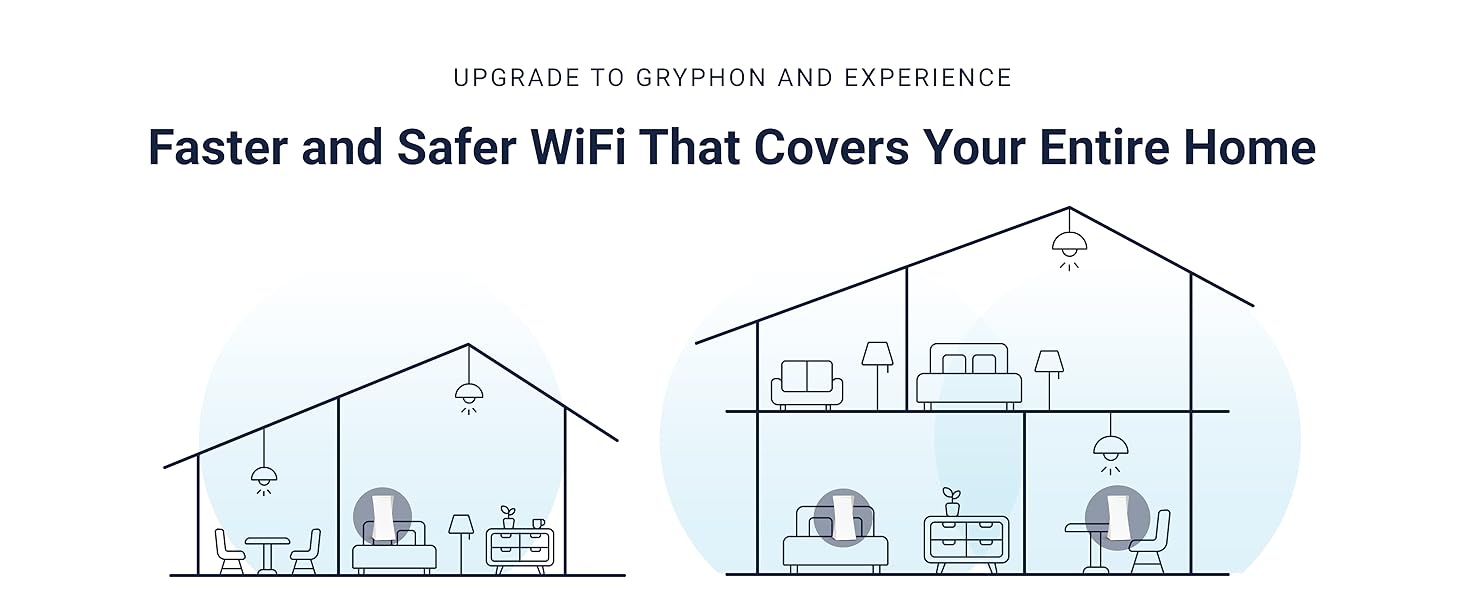
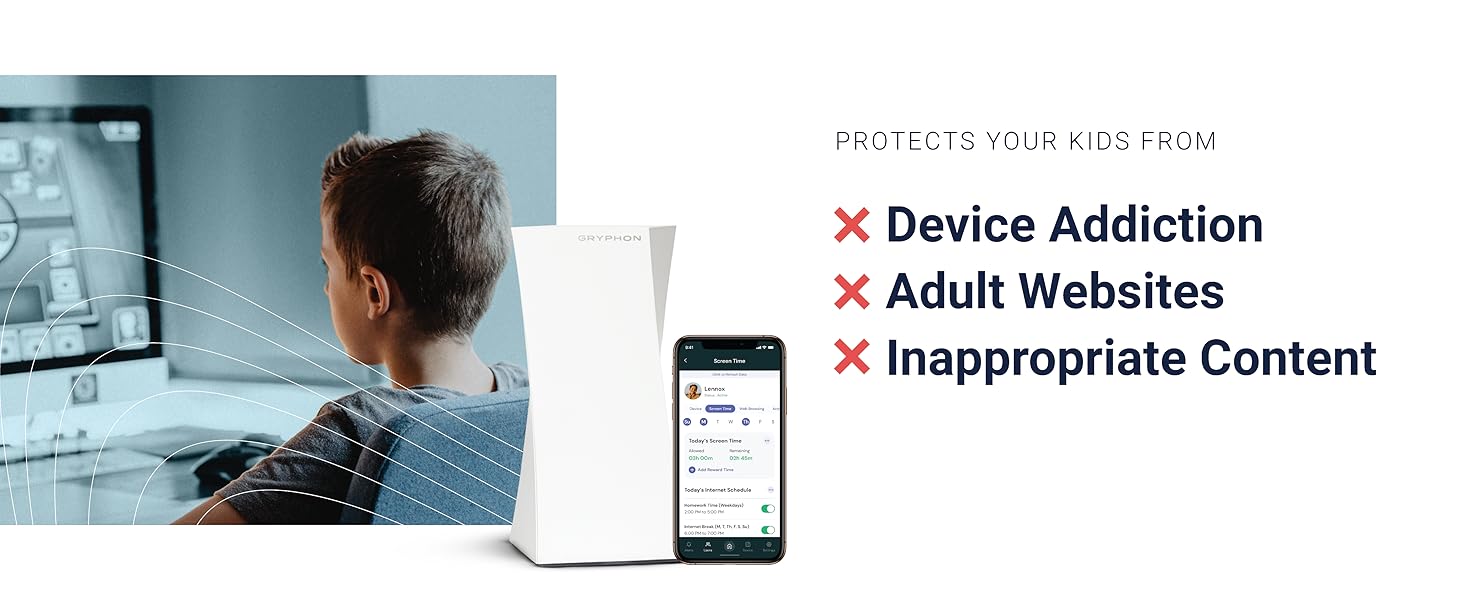
The GRYPHON AC3000 Tri-Band Mesh WiFi Router delivers blazing 3Gbps speeds and expansive 3000 sq.ft. coverage with advanced 4x4 MU-MIMO technology. It combines cutting-edge AI intrusion detection and malware protection with intuitive parental controls accessible via a sleek mobile app. Designed for busy professionals and families, Gryphon ensures seamless connectivity, robust security, and effortless network management—all wrapped in a user-friendly plug-and-play system.





| ASIN | B078Z3PTJP |
| Antenna Location | Business |
| Antenna Type | Internal |
| Best Sellers Rank | #64,683 in Computers ( See Top 100 in Computers ) #1,023 in Routers |
| Brand | GRYPHON |
| Compatible Devices | Laptop, Personal Computer, Smart Television, Smartphone, Tablet |
| Compatible devices | Laptop, Personal Computer, Smart Television, Smartphone, Tablet |
| Connectivity Technology | Wi-Fi |
| Control Method | App |
| Controller Type | Android |
| Coverage | 3,000 sq. ft. |
| Customer Reviews | 4.1 out of 5 stars 2,452 Reviews |
| Data Transfer Rate | 3 Gigabits Per Second |
| Frequency | 5 GHz |
| Frequency Band Class | Tri-Band |
| Frequency band class | Tri-Band |
| Global Trade Identification Number | 00868739000407 |
| Has Internet Connectivity | Yes |
| Has Security Updates | Yes |
| Is Electric | Yes |
| Item Weight | 2.03 Pounds |
| Item height | 9 inches |
| LAN Port Bandwidth | 1000 Mbps |
| Manufacturer | Gryphon Online Safety, Inc |
| Maximum Upstream Data Transfer Rate | 1500 Megabits Per Second |
| Model Name | Gryphon Tower |
| Model Number | 99999 |
| Model name | Gryphon Tower |
| Number of Antennas | 6 |
| Number of Ports | 4 |
| Operating System | Windows |
| Other Special Features of the Product | QoS, WPS |
| Router Firewall Security Level | High |
| Router Network Type | Tri-band |
| Security Protocol | WPA2 |
| Special features | QoS , WPS |
| UPC | 868739000407 |
| Unit Count | 1 Count |
| Voltage | 12 Volts |
| Wireless Compability | 2.4 GHz Radio Frequency, 5 GHz Radio Frequency, 802.11bgn, Bluetooth |
| Wireless communication standard | 2.4 GHz Radio Frequency , 5 GHz Radio Frequency , 802.11bgn, Bluetooth |
P**V
Easy to connect, easy to use. Happy with this purchase.
Purchased this router about a month ago. The router was easy to connect and easy to use. I added the same password as my old wi-fi and all devices just connected to it seamlessly. I only had to identify them and assign to users. The app works great. The filtering of google search and youtube search also works very well. This is exactly what I needed to manage internet connection for the kids. Highly recommend to everyone. The strength of the connection is overall better than my previous router and the wifi modem. Although I expected a slightly better connection, I guess my thick walls and non-central location of the router affect it. I guess it all depends on your setup. A central location would give better coverage, but it is impossible in my case. I may have to buy the second unit eventually, but for now, I connected my old D-link wi-fi extender to get the full coverage of the remote corners of the house (about 150sqm). Overall - I do recommend this unit to others. It is easy to use and it does what it supposed to do - protect your kids and your house online while allowing you to stay in charge of the family.
R**M
Daughter calls it The Hell Machine
It is easy to use and does as advertised
L**E
Very happy, parental controls are the best so far
Purchased this and 3 Guardians to replace a Verizon Fies G3100 and Apple Airport-based wireless network. (Yes, I could have kept the Airport Express setup as non-mesh access points but was worried about compatibility problems, and was time to move on). Provider is Verizon Fios Gigabit. Look, I was of the "just teach your kids/let them teach themselves screen limits, it's part of being a parent". LOL. With COVID, kids home with no one and/or a sitter instead of a parent, and having a kid who considers 24 hours to be a reasonable upper limit of screen time perday" mindset, this was NOT working. Just need some basic structural rules in place besides haranguing, pleading, and threatening. Most of this review is going to be about the parental controls/app, but some basics on the setup: Some people report setup issues. I had no problem, but it took a long time by the clock (as each unit had to connect, update its firmware, etc). I saw no reason to rush this. Best way to do setup, as though there *are* videos on the web they are sometimes out of date: start with the Gryphon app. It will ask you to scan the QR code on the base unit, will then tell you what to plug in or power up and not, then proceed. Once that is up, in the app: network/add mesh repeater, and continue for each Guardian. They have switched to wired pairing--you use a cable--for the initial setup, which I think is wise, then you move the mesh repeater to its final position afterwards. Second step: identify the items (name them) and assign to a user. Sometimes you can tell the manufacturer, but often it's just a MAC address so you may spend some time staring at the labels on devices (MAC addresses almost always on a label or on an internal menu). to narrow it, you can tell how the item is connected to the network though (which repeater, or if hard-wired). Took a while to map out our 30 devices (computers, then thermostats, sprinkler, a scale (!)....) Overall network performance is quite good, nearly as good as Fios' native G3100. [Full disclaimer: my mesh repeaters are hardwired, aka "wired backhaul", which frees up some of the radio issues]. I get 250-500 MBps by Ookla speedtest when a device is connected by 5GHz, about 80-120 Mbps when connected on 2.5GHz, and 850/300 wired just now. Varies somewhat. Haven't load-tested very much, or tweaked, could probably be better. No connectivity issues *except* when I tinker with certain settings in the app--I suspect that the router interrupts service briefly when it saves settings--various cries from around the house when I do so. In terms of the app: I ditched the Verizon G3100 because of the unpleasant discovery that it only allowed one rule per device: that is, one on/off time per day. No afternoon + bedtime. Compared to that, Gryphon is absolutely wonderful. I have not seen most of the issues described by others, so I assume they have been fixed in firmware or app updates. I would praise the following: --Devices are assigned to a user, and you control user access as a group. So, if I suspend access, it ends access for all the devices at once. (More on devices that use cellular later). --Thermostats, printers, etc. have no user, so don't get accidentally suspended (though as some have noted you can give them a user group if you want extra control). --There are pre-assigned categories of filtering based on the age group that you assign to the user. For example, assigning toddler I think blocks everything, but you can approve individual websites (done by attempting them, finding them in the "blocked" list and saying "allow"). Assigning Middle School allows website monitoring but does not autoblock everything, but allows screen time restrictions (see below), app-use restrictions, and enforces google safesearch/youtube comment block, and does not allow VPNs. "Adult" lets you do everything and does not track websites. You have some control within each re. turning things on and off relative to those defaults. --Screen time: Very, very good. Not perfect, but by far the best. For each user, you can set 3 sections of time: BEDTIME (which is suspended internet), SUSPEND (which seems to be the same), and HOMEWORK which allows internet use but blocks certain categories/apps (we don't have Facebook, but could block it then; or Youtube; etc). You can set this for multiple days of the week at once, but also can vary it by day of week. So I can set BEDTIME for Sat/Sun in one step, and BEDTIME for Mon-Fri in a second step. Done. (No copy from user to user I think though). --Screen time 2: there is also a total screen time per day limit, also changeable/fixable by day. I don't know how this works, but there seems to be some sort of "rescue request" that can be sent and/or approved if the user runs out of screen time and wants to ask for more. --Simple internal safeguards: Devices are "known" by their MAC address. Savvy users will know how to spoof the MAC address and pretend to be a new device, but there is a setting to block internet access for new devices until you approve, preventing this. [You get pinged that someone has tried, so you can for example let the babysitter have access if you gave her the password but forgot to do this before you left]. Other safeguards: VPNs can get around the website filters, but there is a setting to block VPN use for a given user. --Using cellular: Another quick workaround is to use cellular to escape the router. However, there is a HomeBound app which institutes a VPN on the mobile device, which enforces the same restrictions as if you are the home network. I have tried this (iPhones only) and it works (though we will see if my kids can defeat it). Unlike what some wrote, it is *not* (at least on iOS) dependent on having the app running on the target phone, closing the app makes no difference. You need to block "deleting apps" in ScreenTime as deleting the app will reportedly defeat it. Important: texts and phone calls still work, even if the service is in the "suspended" state at home/through HomeBound. This is good--don't want to deactivate the phone. I don't know about Google Maps (maybe would function as if offline). Need to deactivate for a few days while your kid is visiting Grandma? You can turn this entire Homebound control on and off from the Gryphon app at the user level, no need to uninstall/reinstall. Nice additional options: --There is a "suspend" quick option for all users or individual users, and you can set it to suspend immediately or in 5 or 15 minutes. Dinner in 5 minute kids! I mean it! -You can turn off the screen time limits above for a given user for a day, then they will restart again normally the next day. I imagine this is: kid home sick, or it's a holiday, no need to dismantle your entire elaborate screen time program and rebuild it. No need to remember to turn it back on. --Works with OpenDNS. One thing I didn't see: Some report that users are able to ask for website such-and-such to be allowed, or to send a list of websites to be allowed, or getting some kind of splash screen saying how to ask for access. Got none of this yet--just the internet works, or it doesn't, for a given site. I'll look for this. Overall--love it. Not perfect. Much better than anything else I've tried.
N**S
Seriously comprehensive Internet home security device
I've been on the lookout for a device to combine Internet security with local network and WiFi routing - looks like I've found it in the Gryphon AC3000. The Gryphon combines a configurable, comprehensive and secure family home router with a leading industry Internet security software product from ESET - without the hassle of installing security software on each computer. Everything on your home network is secured - including smartphones, tablets and all those IoT 'Things' such as doorbells, assistants, cameras, TVs, CASTers, NAS and VoIP phones. It provides levels of security for each Internet user in your household - with options to apply restrictions by age and content. Set-up is done via the Gryphon smartphone app (Android or Apple) - so downloading and opening the app is your first step. Check out the suggested instructional video and follow the prompts. You are asked to create a Gryphon Connect account, which is verified by email. You then use the app to create a secure connection with your Gryphon by scanning the bar-code on the base of the Gryphon with your smartphone's camera. There is no other way to configure it - but this is definitely a big plus point from the security point of view - no hackable web consoles etc. In my case I first documented my existing setup of IP address allocations, DHCP settings and the IP address of my Virgin Media SmartHub2 - a combined Internet modem and router (wired and WiFi). To avoid having to redo all the addressing of my various 'Things' I decided to replicate these settings in the Gryphon. If I wasn't so bothered I could have let it make it's default settings - probably best for most people. To get going I first had to put the VM SmartHub in to 'Modem' mode as detailed in Virgin Media's on-line help (look for 'Modem mode'). Then I followed the Gryphon app's instructions to connect them together and make the Internet connection. I found that I had to power both off and back on after waiting a couple of minutes for the Internet re-connection to succeed (as prompted by the app). In Network settings I changed the Gryphon's IP address to match the original VM Superhub's address - the Superhub uses a different address in modem mode. In WiFi settings I replicated the Superhub's 2G and 5G SSIDs and de-selected Auto Band Steering to make them visible separately. Bingo - as the Gryphon discovered my switched on devices and things I adjusted those few it couldn't categorise, such as a USB server used for some old non-networked printers - categorising it as a Printer did the job. I was also pleased that it correctly categorised my QNAP NAS and Gigaset VOiP with no need for any manual port forwarding. If you use alternative search engines to Google/Bing, such as DuckDuckGo, you'll need to de-select the Safe Search option per user. Time will tell if the Gryphon matches up to expectations, but so far so good ... If you are after a comprehensive review and set of detailed instructions - then check out the review further down from Nicolas E. Kaiser November 21, 2018 - I found it very helpful.
G**.
Contrôle parental trop facile à contourner
J ai acheté ce produit pour avoir un contrôle parental évolue sur mon wifi. Les coupures planifiées fonctionnent mal et sont assez difficile à utiliser et de plus mon fils de 14 ans a contourné le contrôle parental avec un VPN en moins d’une semaine. Je suis très déçu.
Trustpilot
5 days ago
3 weeks ago